If your proxy will not connect, start by checking whether the resource has expired or your data allowance has run out. Then verify the host, port, username, password, and protocol. If those are correct, check your network connection and application settings. When a proxy test passes but one website still will not load, investigate that website’s error message separately.
Use the symptoms below to decide where to start:
| Symptom | Check first |
|---|---|
| Authentication failed | Username, password, and authentication settings |
| Connection timed out | Host, port, network reachability, and resource status |
| Proxy test passes but pages will not load | Whether the proxy is applied and what the destination website reports |
| Pages load but are slow | Use the bandwidth and speed-testing guide |
Error messages vary between tools. These are starting points for troubleshooting, rather than definitive diagnoses.
Work through the checks below in order. Change one setting at a time and test again so you can identify what made a difference.
1. Check expiry and remaining data
Open your proxy dashboard and confirm that the resource is still active.
For a static ISP proxy, check its expiry date and make sure the saved configuration belongs to that active resource. Resolve any expiry or renewal issue before testing again.
For a rotating residential proxy, check both the package validity and remaining data. Address an expired package or exhausted allowance first.
If you have generated new proxy details or changed settings in the dashboard, make sure your application uses the latest details.
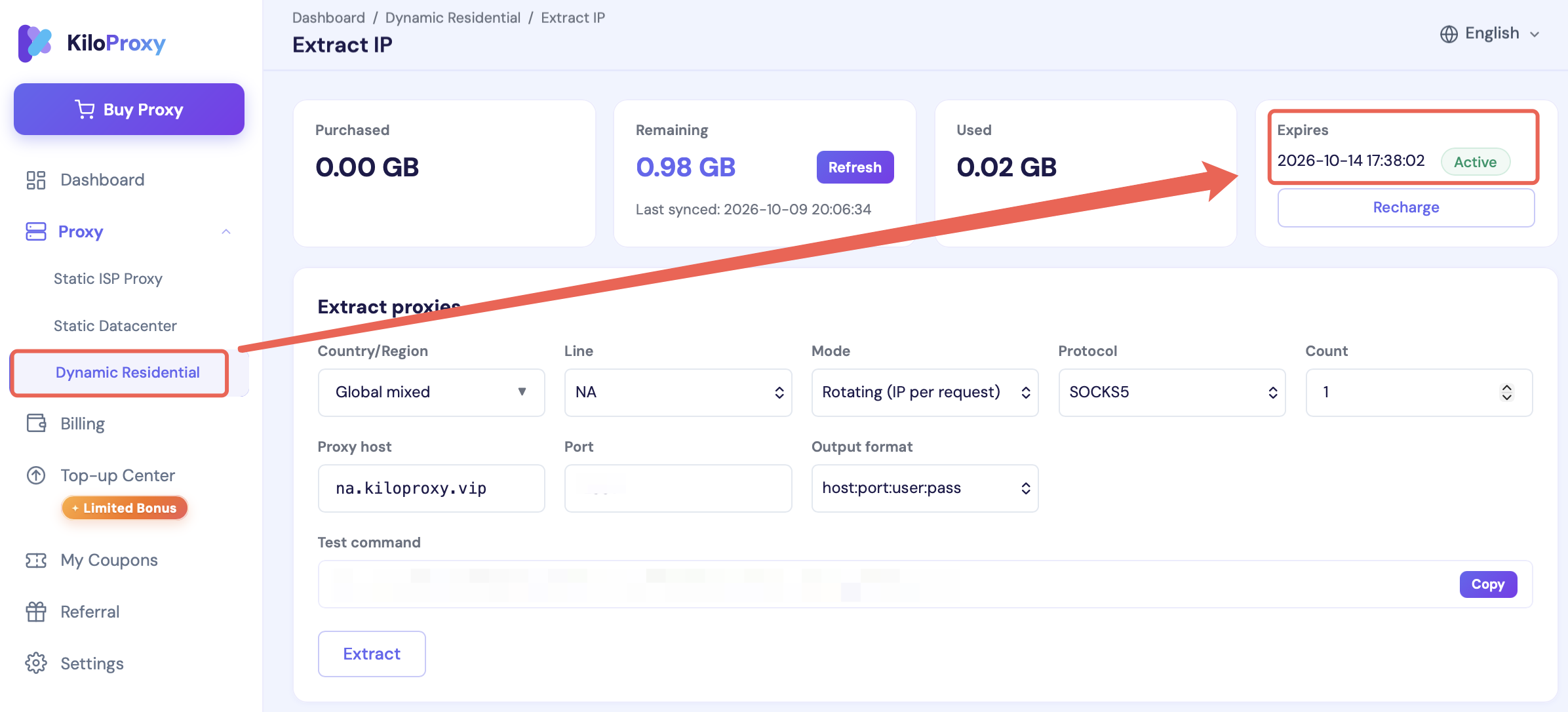
Screenshot for illustration; check your current dashboard for resource status and dates.
2. Verify the host, port, credentials, and protocol
A missing character, a value entered in the wrong field, or an unsupported protocol can prevent a connection. Compare each field with the details supplied in your dashboard.
| Field | What to verify |
|---|---|
| Proxy host | Copy the supplied address in full. Do not replace it with the exit IP shown by an IP checker. |
| Port | Use the port supplied with that host. Do not change it at random. |
| Username and password | Look for missing characters, extra spaces, or values entered in the wrong fields. |
| Protocol | Choose a protocol supported by the proxy and matching the supplied connection details. |
| Input format | Check whether the tool expects separate fields or a complete proxy string. |
A protocol option appearing in your application does not mean your proxy supports it. Some tools accept a full proxy string; others require the host, port, username, and password separately.
If you are unsure, copy the details again, enter them in the required format, save the configuration, and repeat the test.
3. Check whether your network can reach the proxy server
Correct connection details do not guarantee that your current network can reach the proxy endpoint. There are two separate parts to check:
- Network reachability: the connection that lets your device reach the proxy server.
- Proxy exit: the IP address used for outbound requests after the proxy connection succeeds.
For users in mainland China, KiloProxy static ISP proxies require a separately arranged network connection that can reach the proxy server. The static ISP proxy is then configured as the exit IP. Purchasing the proxy does not provide that prerequisite connection.
Check the following:
- Is the prerequisite network connection working?
- Does the current browser or application actually use that connection to reach the proxy server?
- Are other proxy tools running and creating conflicting settings?
A connection working in one application does not mean your current browser profile uses the same network path. Restore reachability first, then test the proxy again.
4. Make sure the application has applied the settings
After entering the proxy details, confirm that the configuration is saved and applied to the environment you are using.
- Have you clicked Save or Apply?
- Did you open the browser profile you just configured?
- Does the tool require a reconnection or profile restart after a change?
- Is the application using this proxy or a different system proxy setting?
Next, run the application’s built-in connection test and record the exact error.
For an authentication error, start with the credentials and authentication method. For a timeout, focus on the address, port, and network reachability. If the test still fails, keep a screenshot of the error for support.
For detailed setup screenshots, see how to configure a proxy in HubStudio (Chinese guide).
5. Investigate websites that fail after a successful proxy test
A successful proxy test generally means the tool completed its particular connection check. It does not establish that every destination website is accessible.
Can other websites load?
Try other websites in the same browser profile. If none load, revisit whether the proxy is applied to that profile and check the connection during actual browsing.
If only one website fails, investigate its specific error. That alone does not establish that the proxy is unavailable.
Is the expected exit IP being used?
Open an IP-checking website in the same environment and verify that requests are using the expected proxy exit. Geolocation databases can differ, so a city label alone should not be treated as proof of a connection failure.
If the destination displays a login challenge, access restriction, or service error, follow the relevant message. Repeatedly changing IP addresses may not resolve the issue and can make diagnosis harder.
If pages load but downloads or uploads are slow, move on to speed troubleshooting.
See the guide to proxy bandwidth and speed testing (Chinese guide).
6. Send useful diagnostic details to support
If the connection still fails after these checks, gather:
- Product type: static ISP or rotating residential proxy.
- Browser or application name.
- A screenshot of the exact error.
- When the failure occurred and whether the connection worked previously.
- Troubleshooting steps already completed.
- The relevant resource or order reference.
KiloProxy users can submit this information through an official support channel to help investigate the resource status and configuration.
Redact proxy passwords, full credentials, and personal account details from screenshots. If sensitive details are needed, provide them only as necessary through the official support channel, never in public comments.
Follow this sequence: resource status → connection details → network reachability → application settings → destination website. Address the first failing step before changing more settings; this makes the cause easier to identify.