Your product video is ready and TikTok loads normally, but the upload crawls or stalls at the same point every time. First check whether the file is still uploading or TikTok is already processing it. Then try a smaller video. If that stalls too, verify the public IP and measure upload speed from the device you actually use to publish.
1. Check whether the video is uploading or processing
If the progress bar stops moving or an error appears before the upload finishes, record the error message, where the upload stalled, and the file size. These details will guide your next test.
If the upload finished and TikTok says “Processing,” check the status and any on-screen instructions. A speed test helps assess the connection used to transfer the file. If the app itself is also failing to load or connect, start with TikTok's official troubleshooting guidance. TikTok Help Center
2. Try a smaller video to narrow down the cause
Play the original file from start to finish to check its picture and sound. Then try uploading a smaller video using the same device and publishing setup. A small file that uploaded successfully before makes a good comparison.
If you only have a livestream replay or a long product demo, you can use ShortMind to create a short clip and choose its length and aspect ratio. For example, a seller could cut a vertical clip showing how to remove and clean a portable blender lid, keeping both the demonstration and the explanation. Check the exported file size before testing. The same clip can later serve as a standalone product tutorial.
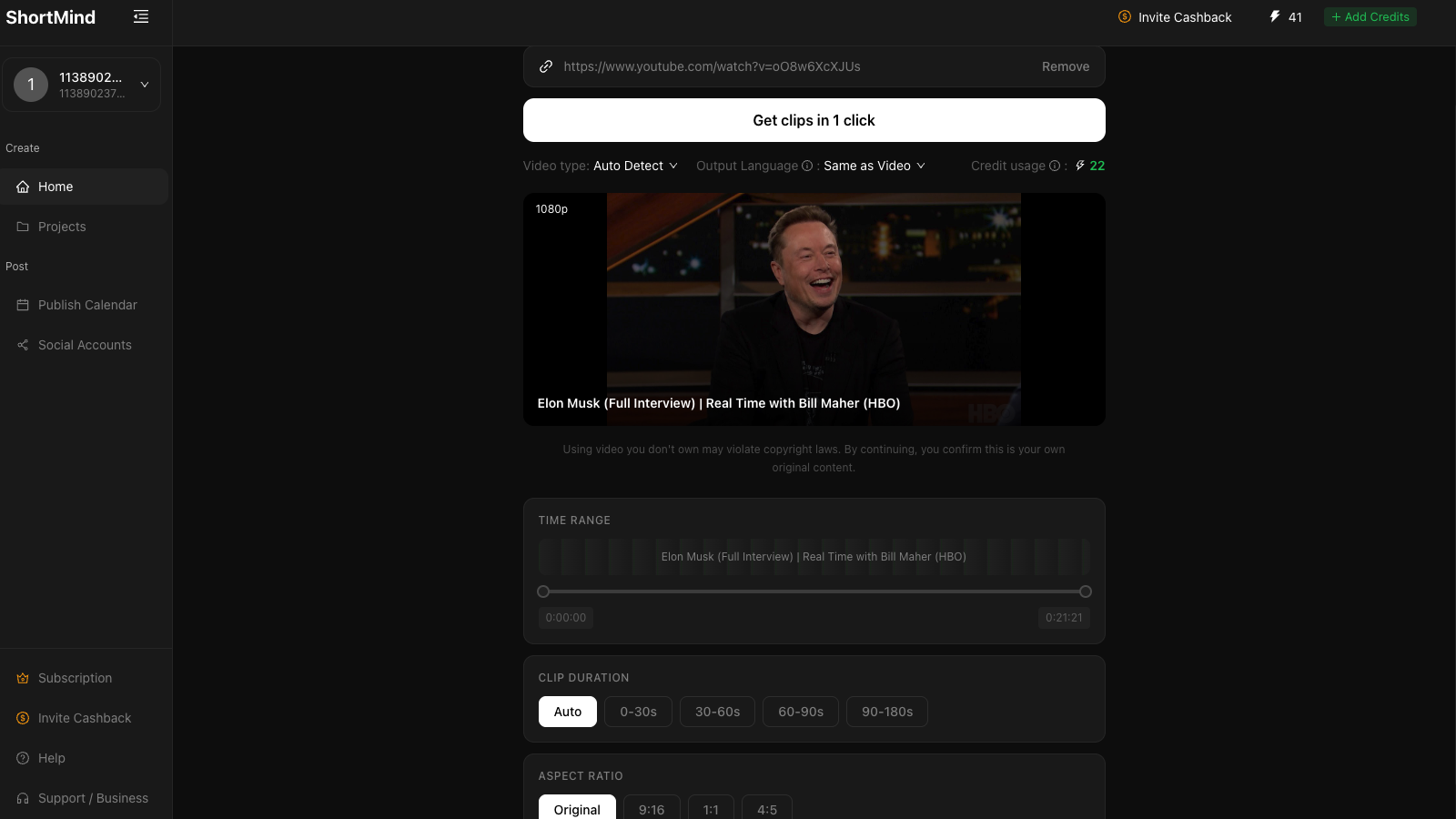
Example screenshot; results and product options vary by connection and current availability.
| Test result | What to check next |
|---|---|
| Small file uploads, but the original keeps failing | Check the original file size and export settings. Try a previously successful file of a similar size to see whether large transfers are more likely to stall. |
| Both files stall | Verify the public IP and upload speed in your publishing setup. Look for any file or account errors from TikTok. |
| Both files finish uploading but are still processing | Follow the status and instructions shown in TikTok. |
3. Measure upload speed in your publishing setup
Check which connection the upload uses. If you upload through a browser configured to use a proxy, verify the public IP in that browser and run the speed test there. If you publish through the TikTok mobile app, check the phone's proxy settings and connection separately. A desktop speed test only describes the desktop setup.
Look at upload speed. Run two or three tests in the same setup and check for large swings. Even when pages load smoothly, transferring a large video or uploading from several devices at once can expose limits in available upload bandwidth. KiloProxy's guide to choosing proxy bandwidth (Chinese)
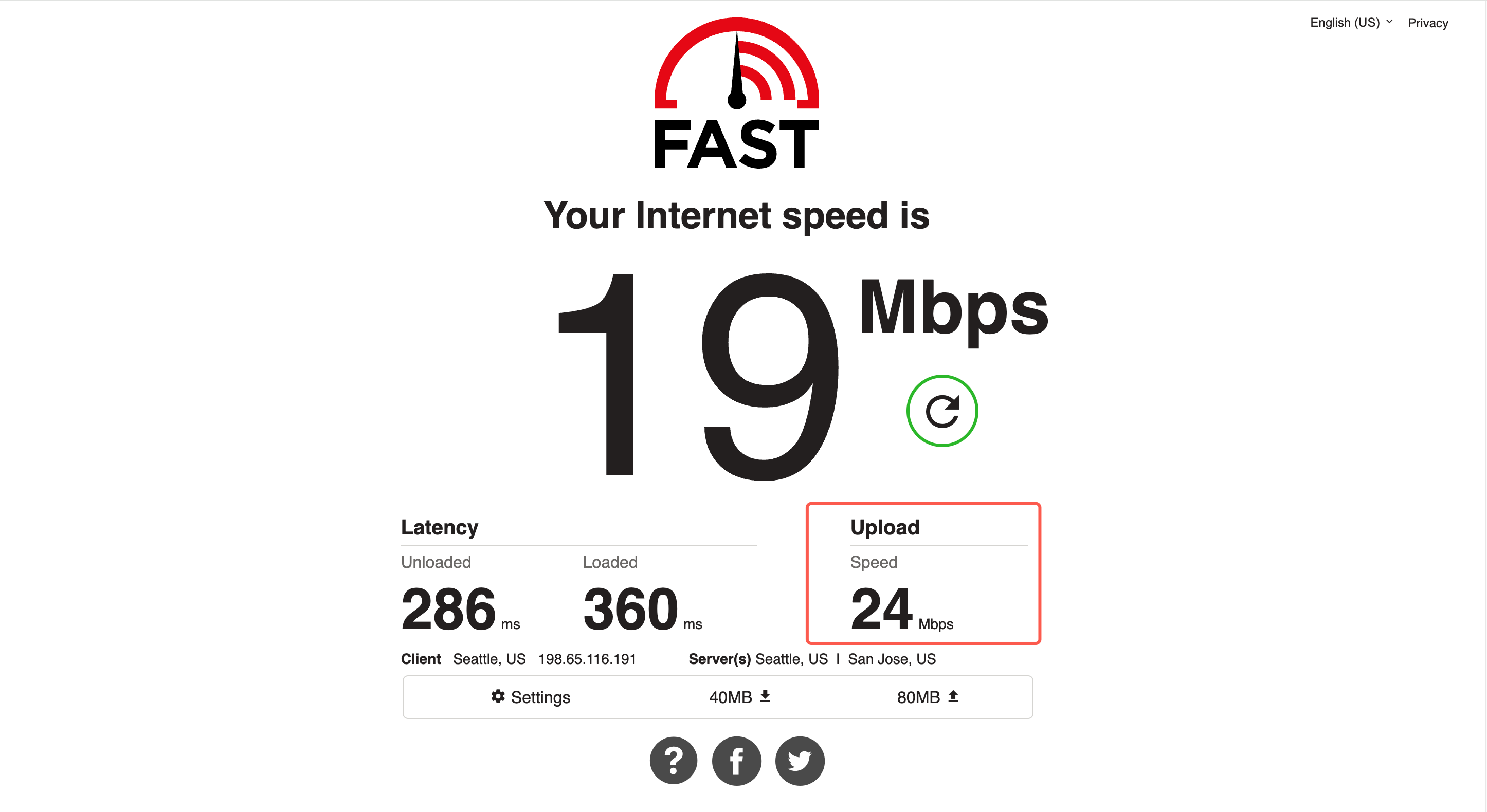
Example screenshot; results and product options vary by connection and current availability.
Try the same clip again and change one condition at a time. For example, record the result with cloud sync running, then pause it and retry. If you compare two configured connections, keep the device, video file, and upload method the same. Record whether each attempt finished, where it stalled, and how long it took. Compare those results with the speed test because the test server and TikTok may use different network paths.
4. What to check when using a KiloProxy static ISP proxy
| What you see | What to do |
|---|---|
| Proxy connection fails or the public IP differs from the configured IP | Check that your network can reach the proxy server. Then verify the settings and confirm the publishing app is using that connection. |
| The public IP is correct, but large or simultaneous uploads slow down | Check the bandwidth of your plan, pause other uploads, and retry one file. Devices using the same proxy connection share its bandwidth. |
| The same file repeatedly stalls on one connection and fares better on another | Record the time, file size, upload results, and any error message. Share those details with KiloProxy support. |
If your team needs a consistent public IP for signing in, uploading, and managing its accounts, consider a dedicated KiloProxy static ISP proxy based on the region and bandwidth you need. A static proxy gives you a consistent public IP. Upload speed depends on measured upstream throughput, the network path, and how much bandwidth is in use. Users in mainland China need a network connection that can reach the proxy server before configuring the static ISP proxy as their internet exit. KiloProxy's TikTok proxy guide
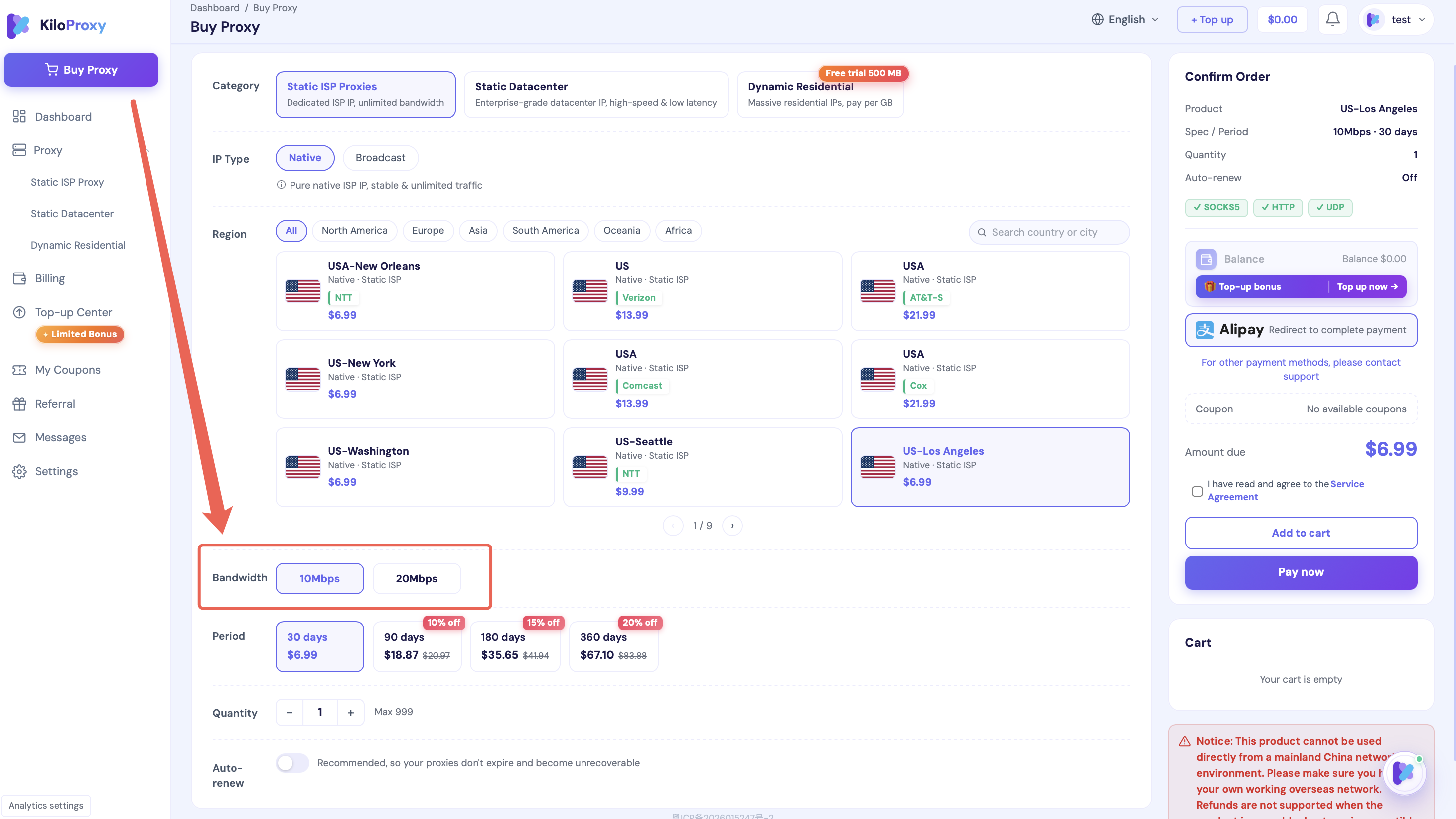
Example screenshot; results and product options vary by connection and current availability.
When a TikTok upload slows down, identify where it stalls, test a small file, verify the public IP, measure upload speed, and retry with one change at a time. If you contact support, include the file size, the error message, and the results of both attempts so they can compare them.