Usage notice: This product does not support direct use within mainland China's network environment. Please make sure you have your own working overseas network environment. No refunds will be issued for failures caused by an incompatible network environment.
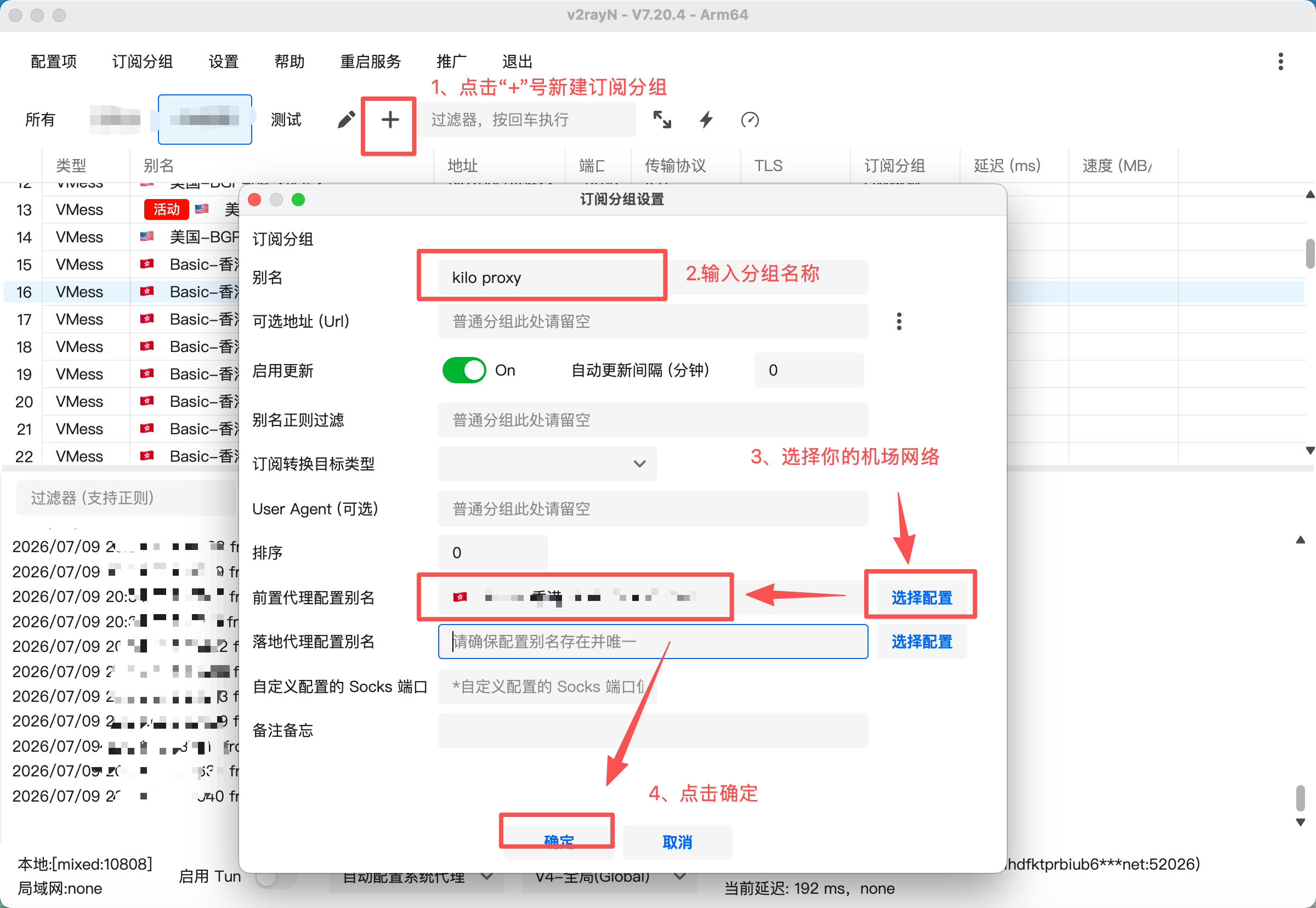
Step 1: Open V2, and create a new [Subscription Group].
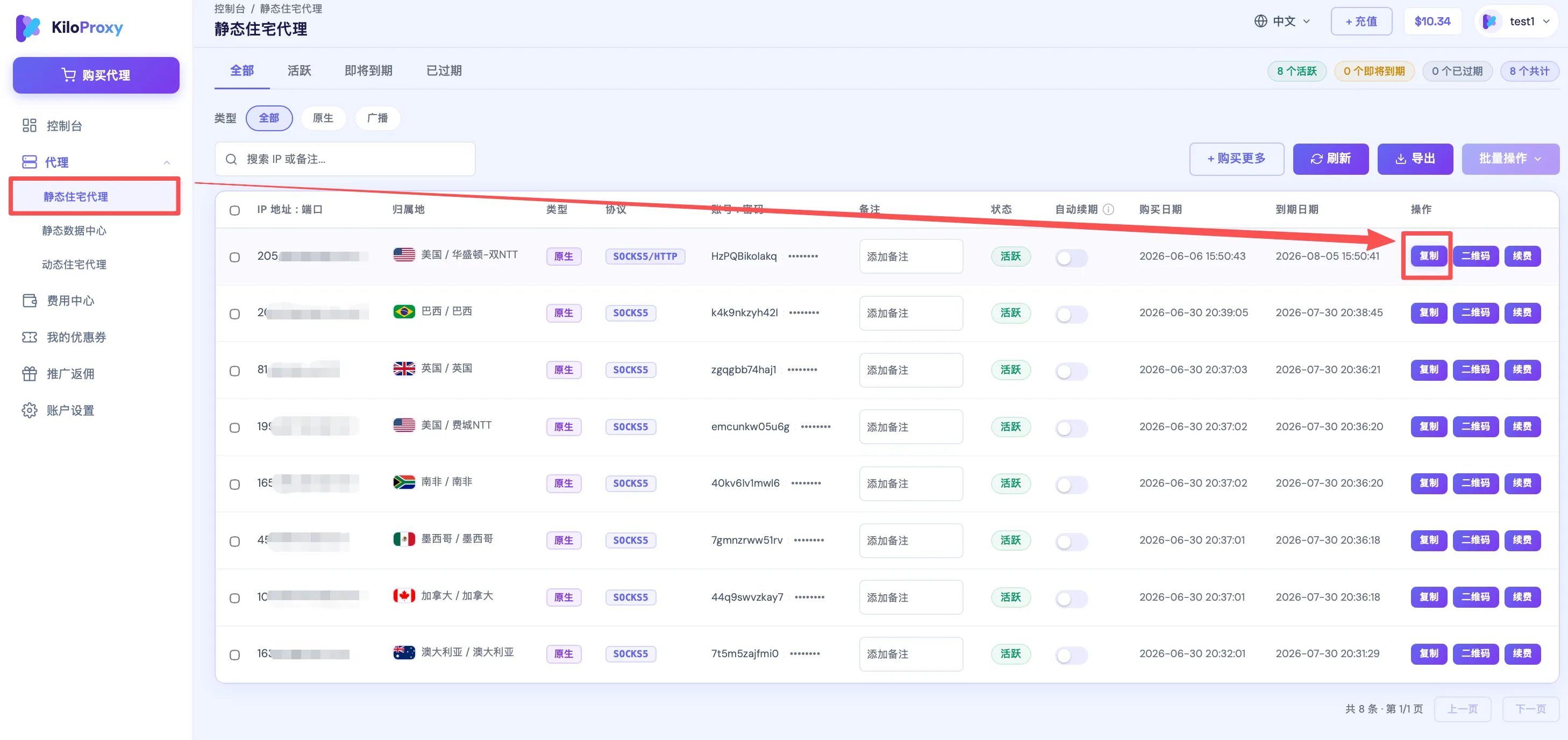
Step 2: Find the IP you want to configure in the proxy list, and click [Copy] to copy the IP information in one click.
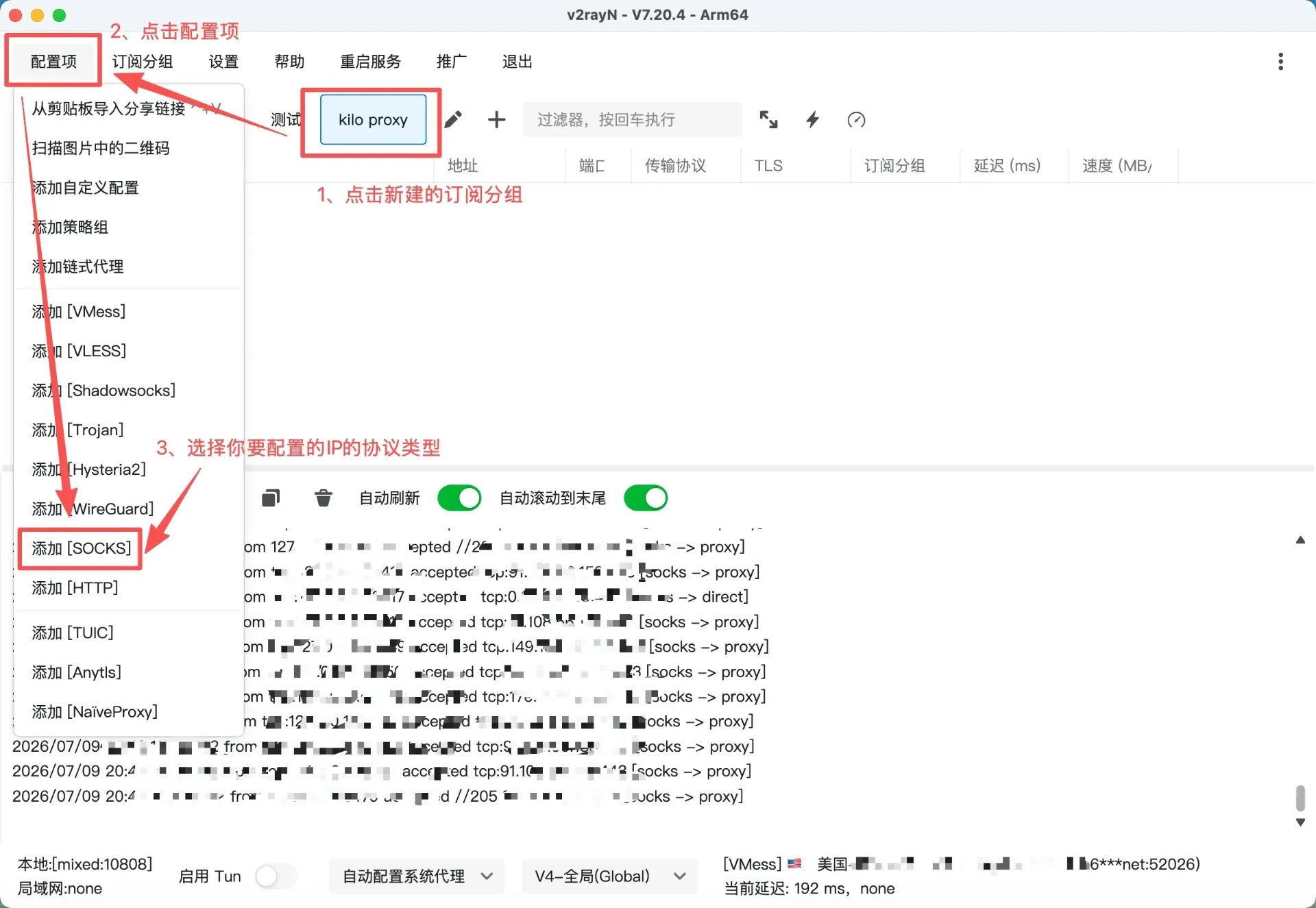
Step 3: Click the [Subscription Group] you just created and choose the protocol type of the IP you want to configure. Here we use the socks5 protocol as an example.
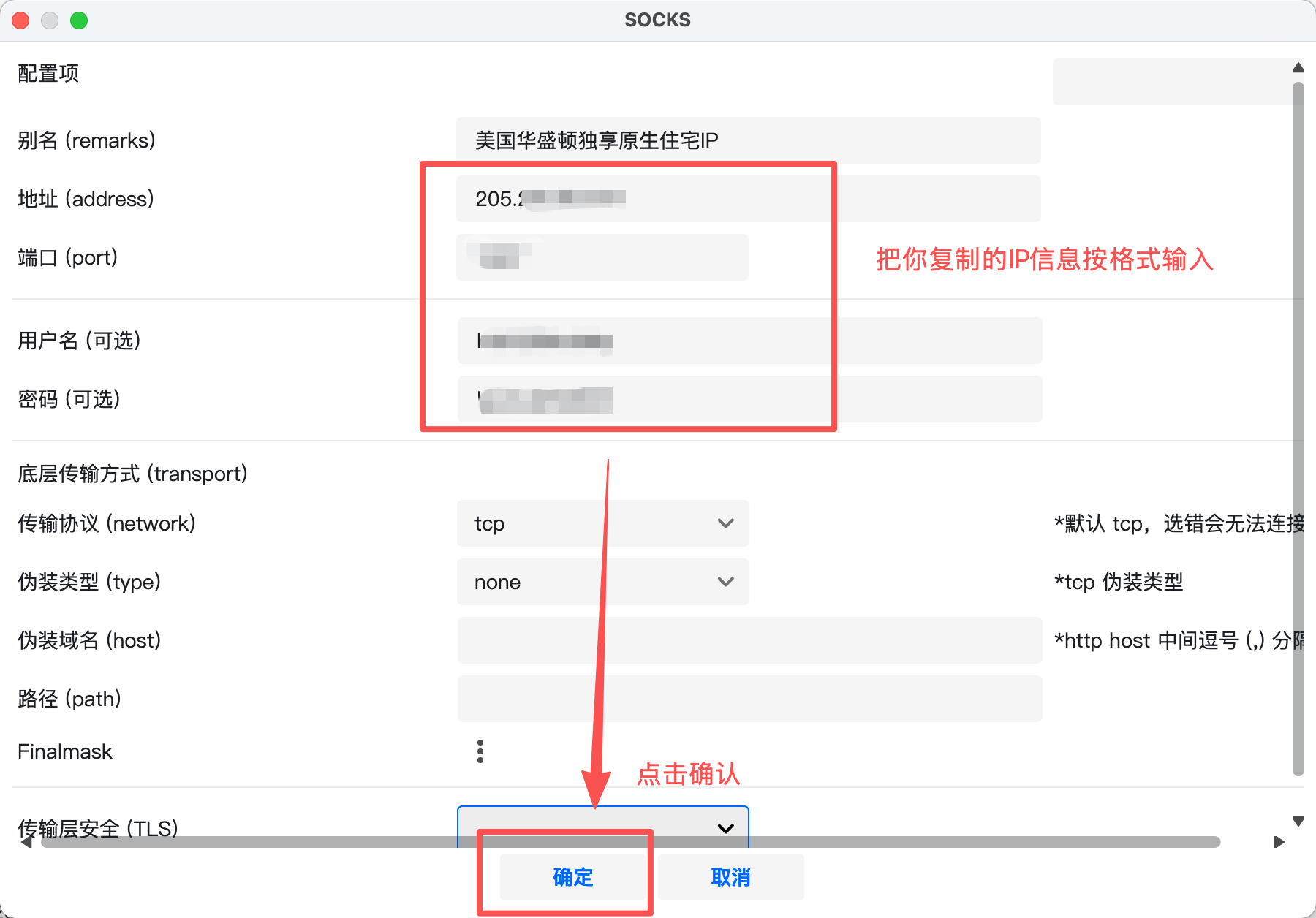
Step 4: Enter the copied IP information in the required format, then click OK.
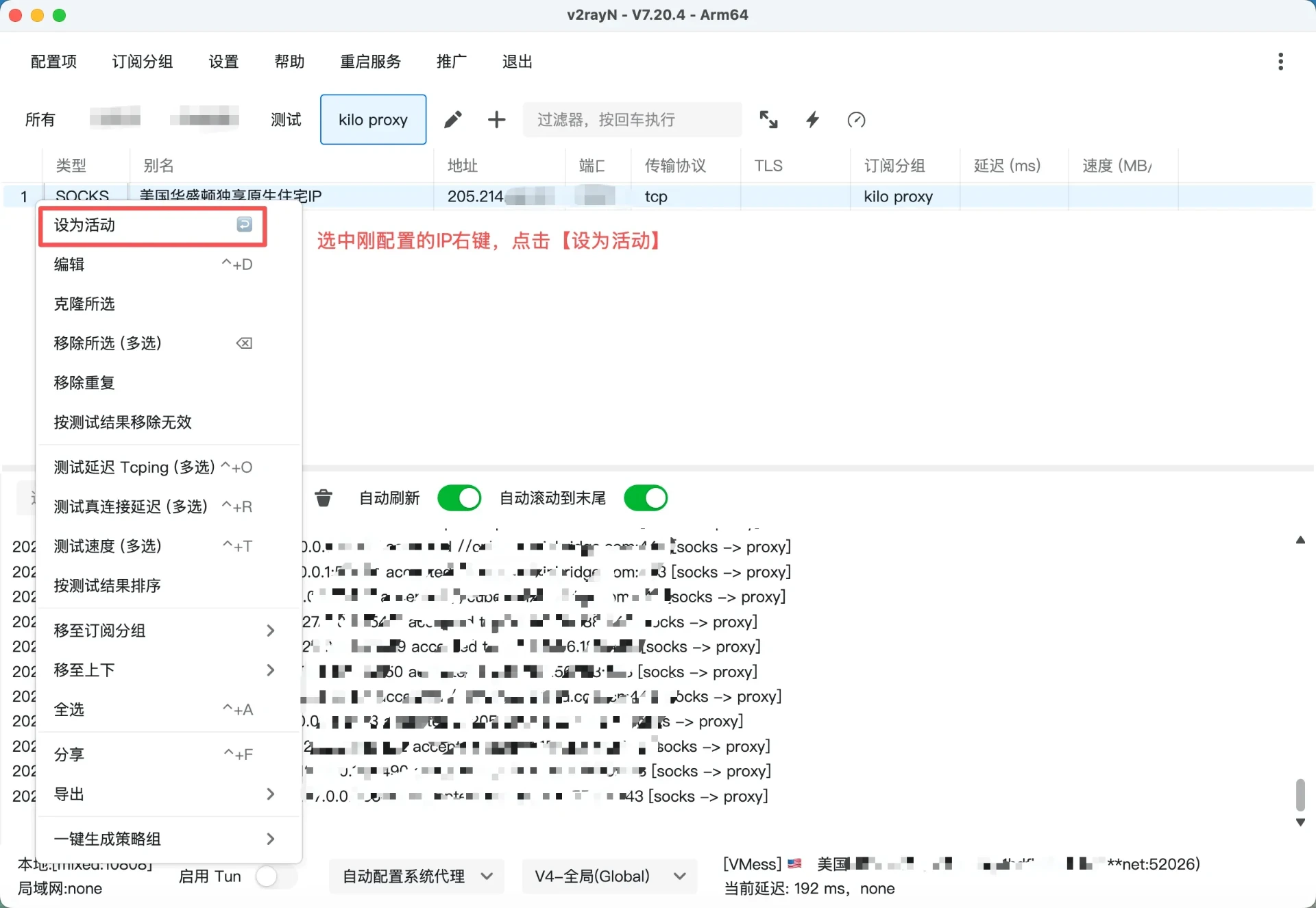
Step 5: Right-click the IP you just configured and click [Set as Active].
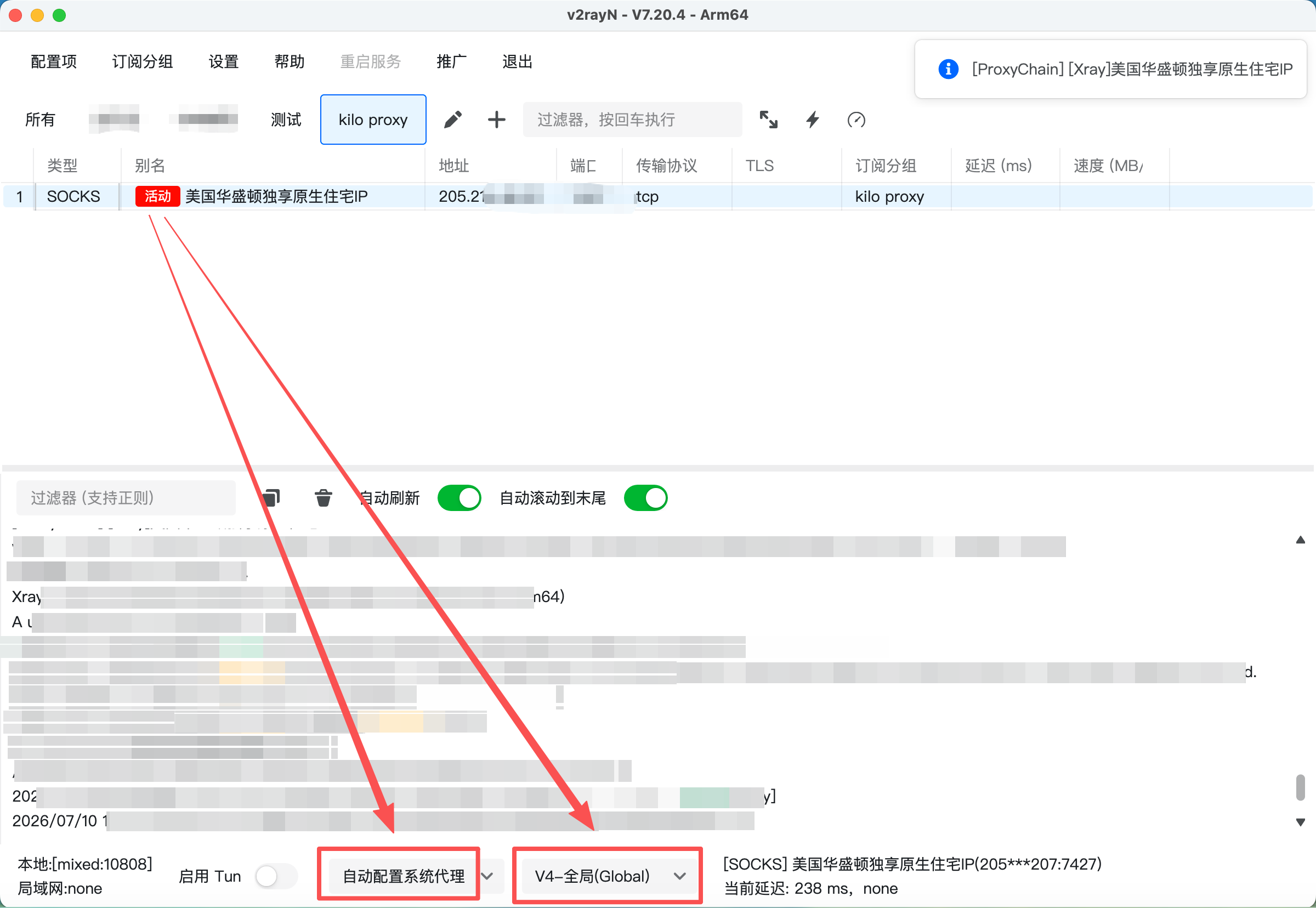
Step 6: At the bottom, select [Auto-configure System Proxy] and [Global].
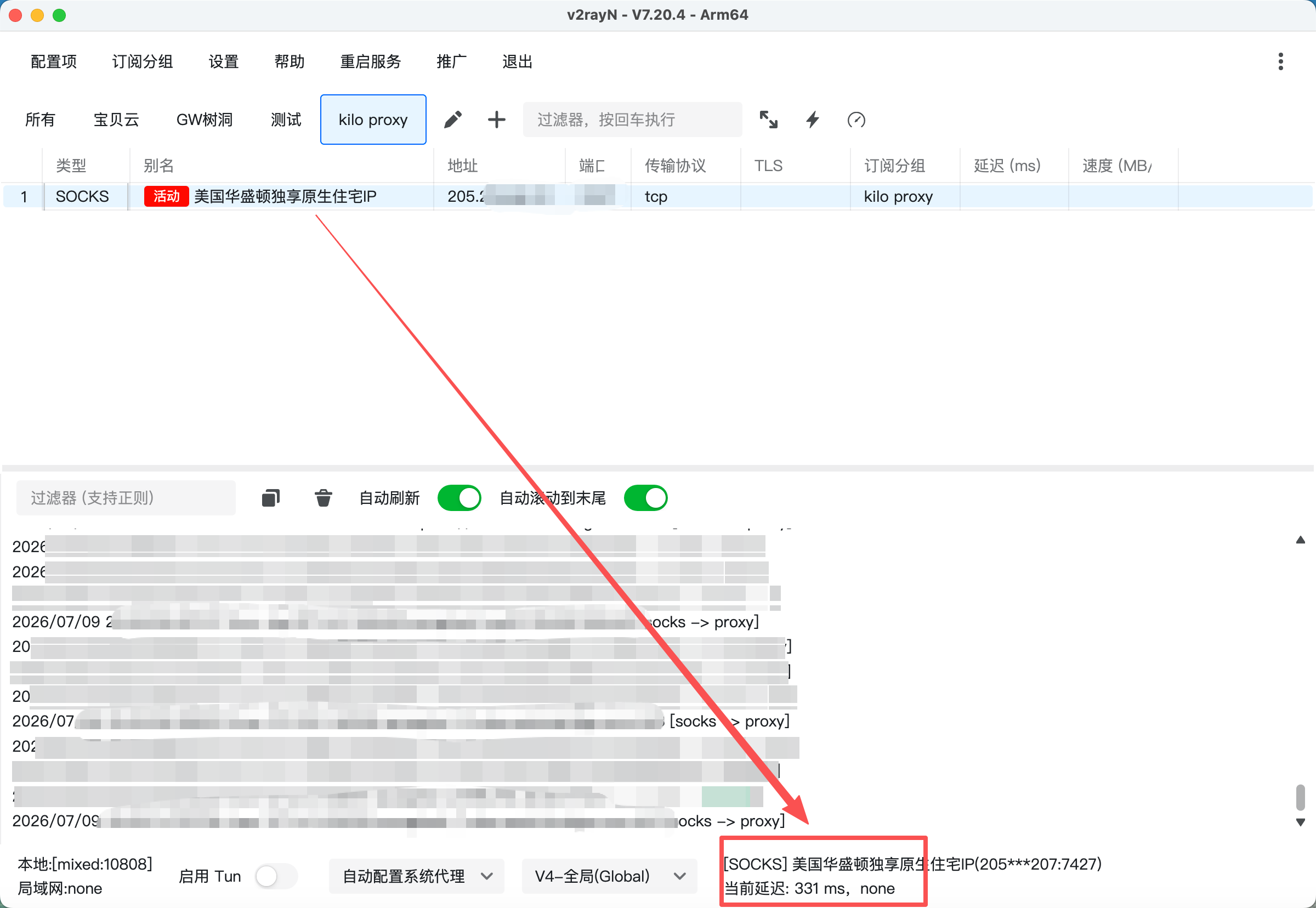
When a latency value appears in the bottom-right corner, the configuration is successful.
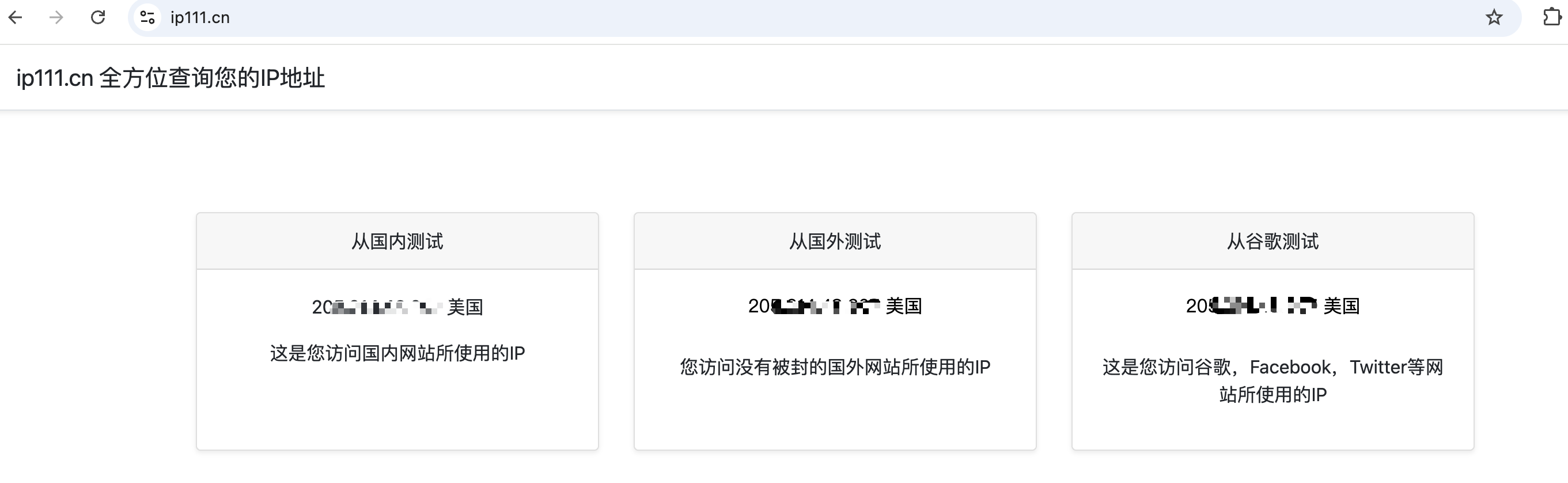
Once configured, you can open ip111.cn to check whether the current IP is the one you just configured.
If you have any questions during use, please contact KiloProxy official support on WeChat 👇