Usage notice: This product does not support direct use within mainland China's network environment. Please make sure you have your own working overseas network environment. No refunds will be issued for failures caused by an incompatible network environment.
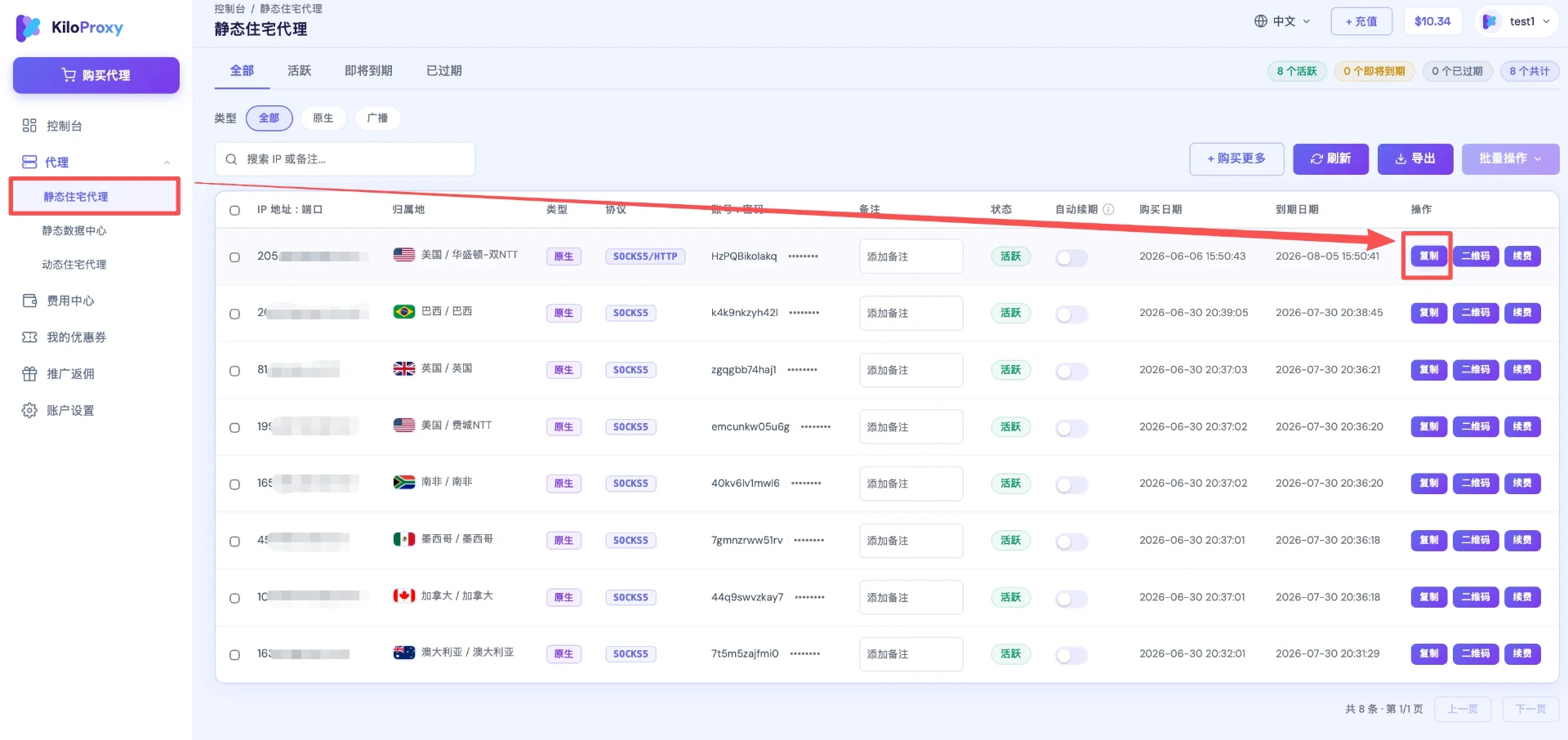
Step 1: Find the IP you want to configure in the proxy list, and click [Copy] to copy the IP information in one click.
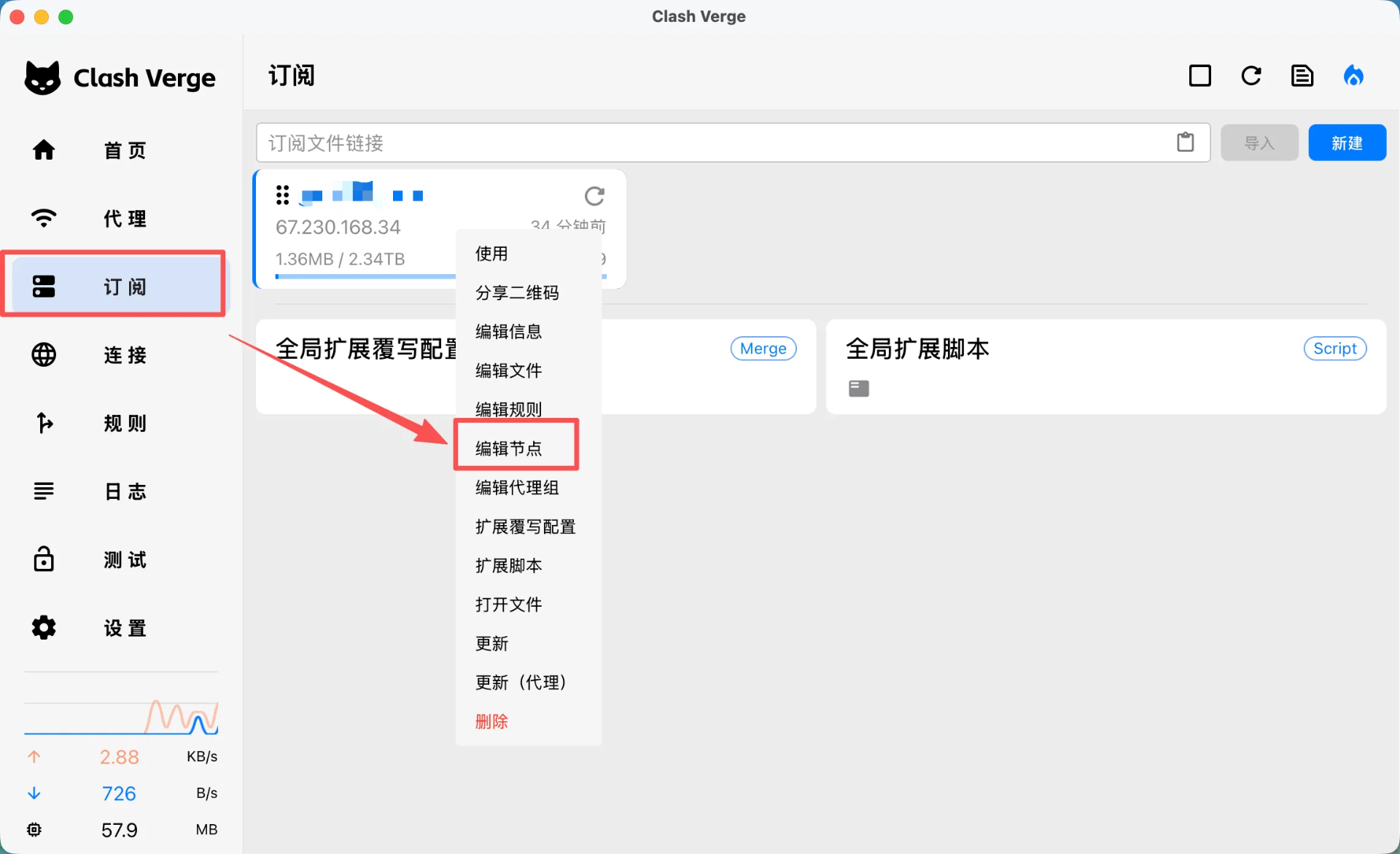
Step 2: Open Clash Verge, click [Subscription], find your airport (transit) network, right-click it and choose [Edit Node].
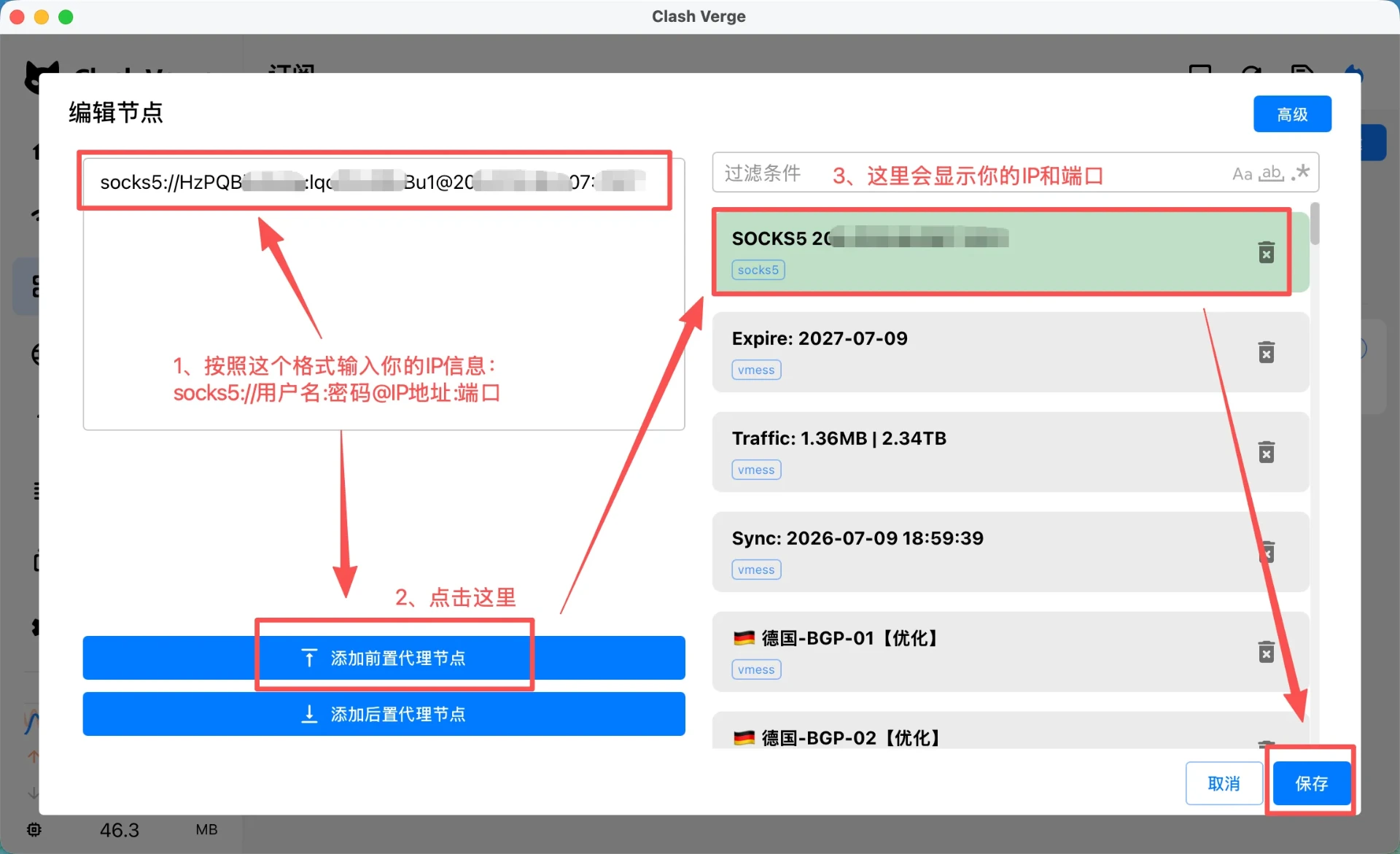
Step 3: Enter your IP information in this format: socks5://username:password@IP:port. Shown here is the IP configuration format for the socks5 protocol; for other protocols, just replace the protocol type at the front with the corresponding one.
Note: all punctuation must be entered in English (half-width) format. You can copy the text above directly.
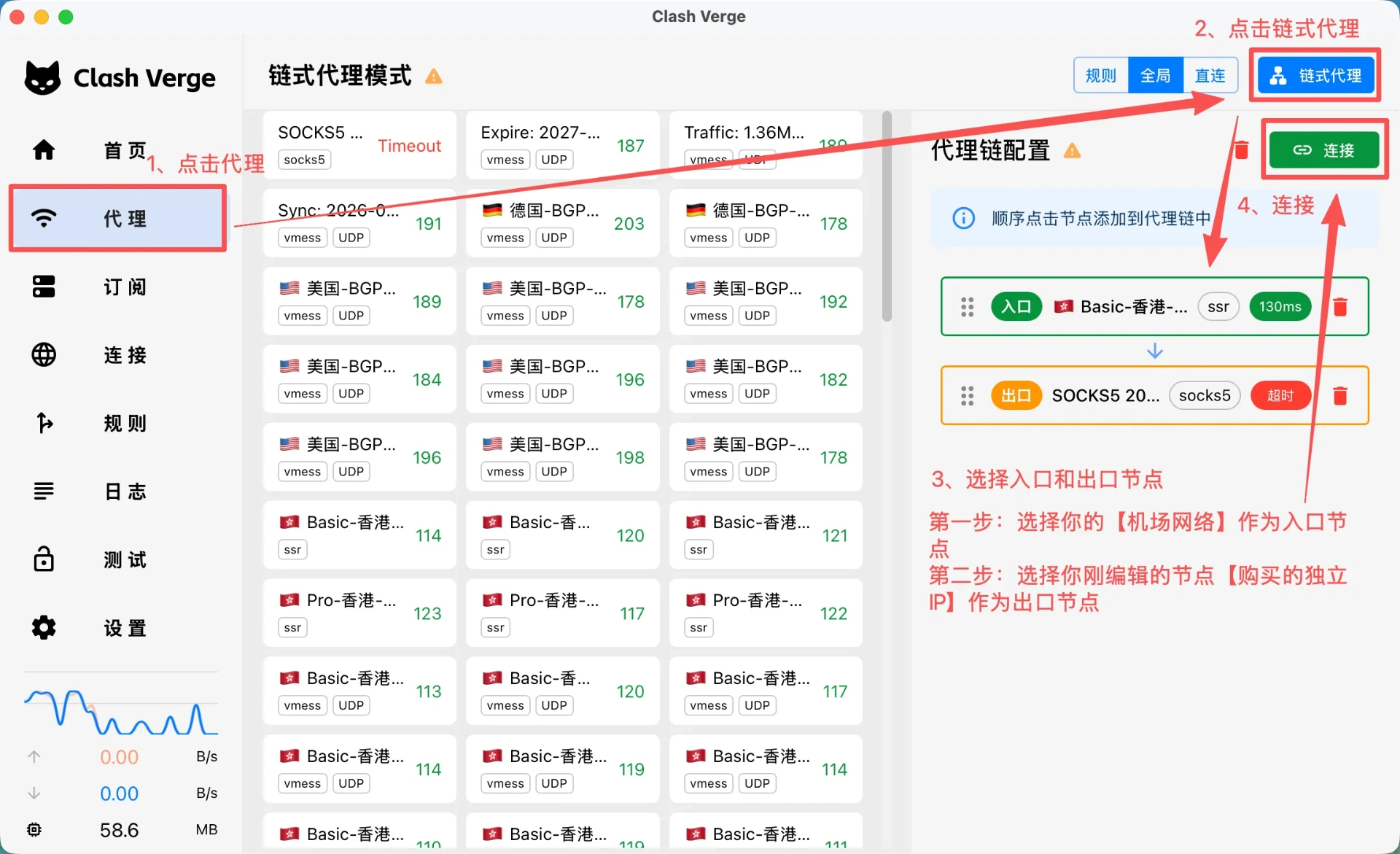
Step 4: Click [Proxies], then [Chain Proxy], and click the nodes in order to add them to the proxy chain.
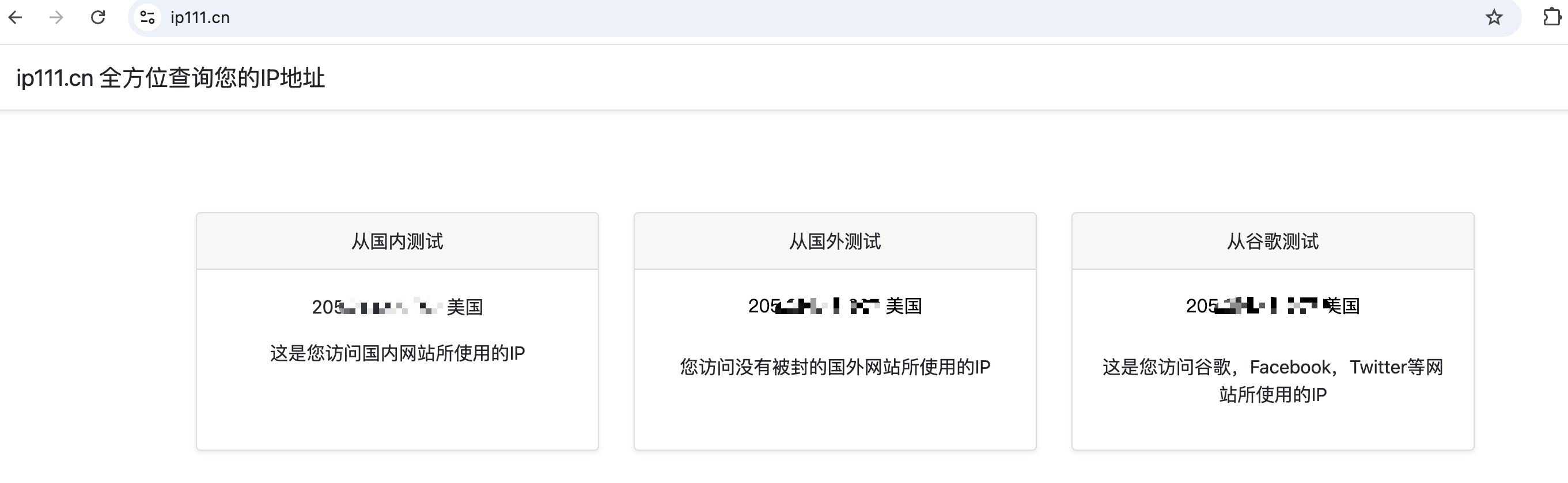
Step 5: Open Google to check whether you have internet access, and open ip111.cn to check whether the current IP is the one you just configured. If it is, the chain proxy is successful. If there's no internet or the IP doesn't match, try switching the transit network.
If you have any questions during use, please contact KiloProxy official support on WeChat 👇