Usage notice: This product does not support direct use within mainland China's network environment. Please make sure you have your own working overseas network environment. No refunds will be issued for failures caused by an incompatible network environment.
Step 1: Open V2rayN, first create a group and enter a [Group Name].
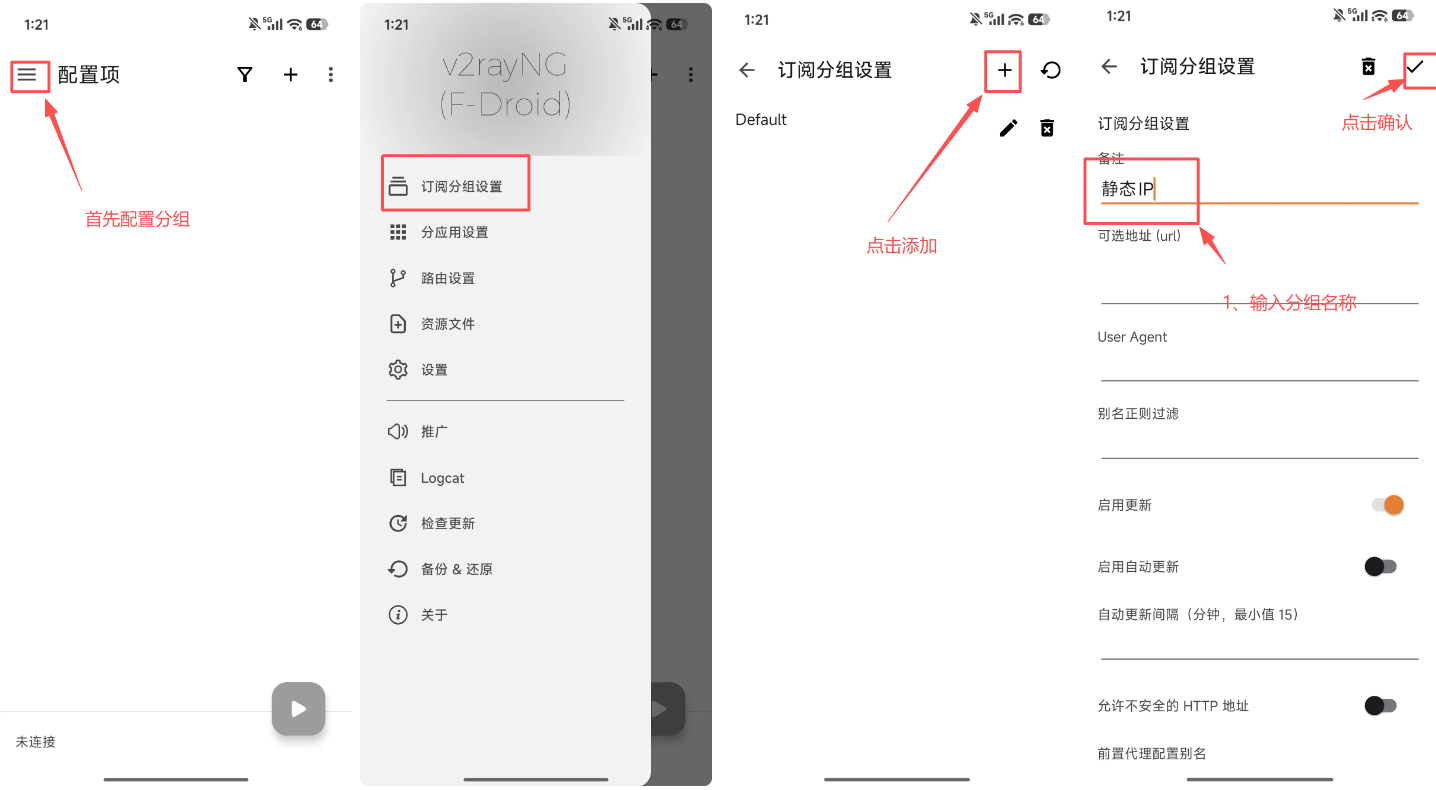
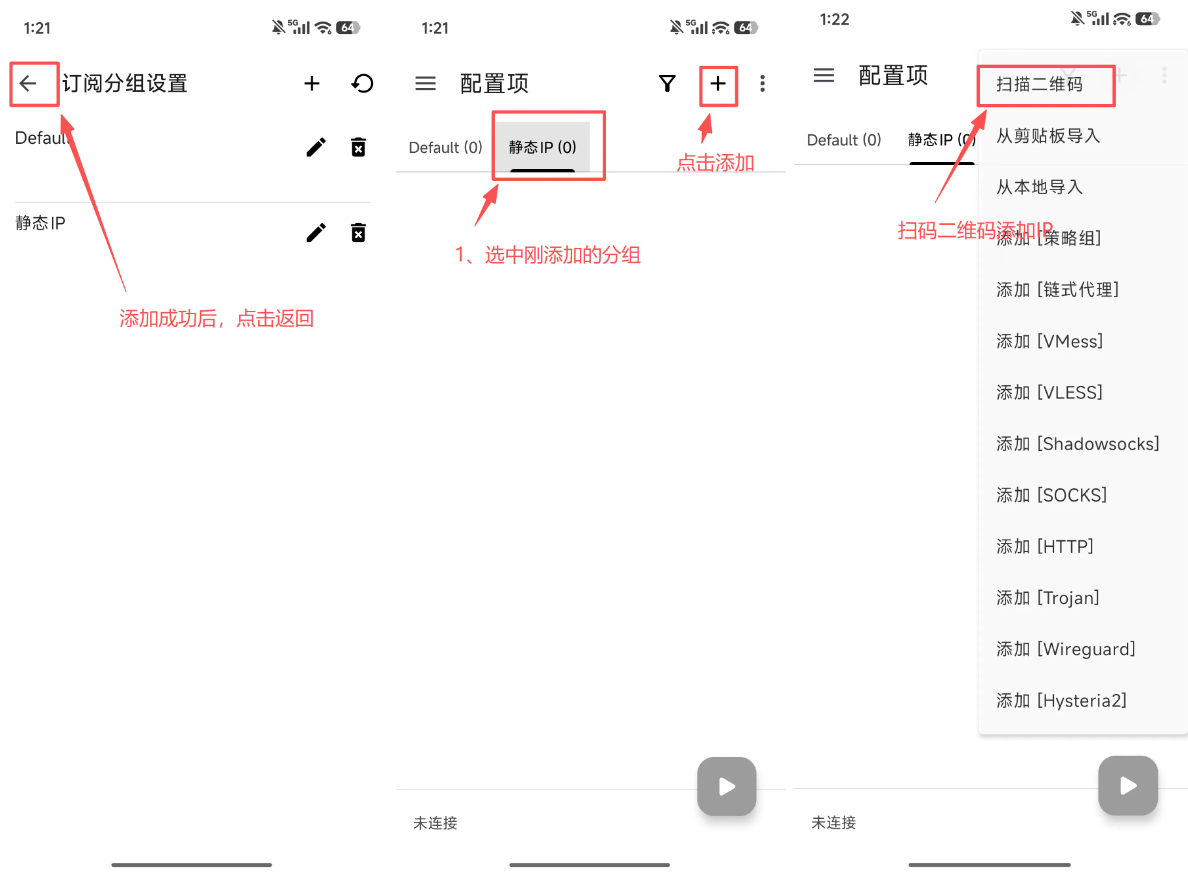
Step 2: Select the group you just added, click the + in the top-right corner of the config page, and click [Scan QR Code] to scan and configure the IP.
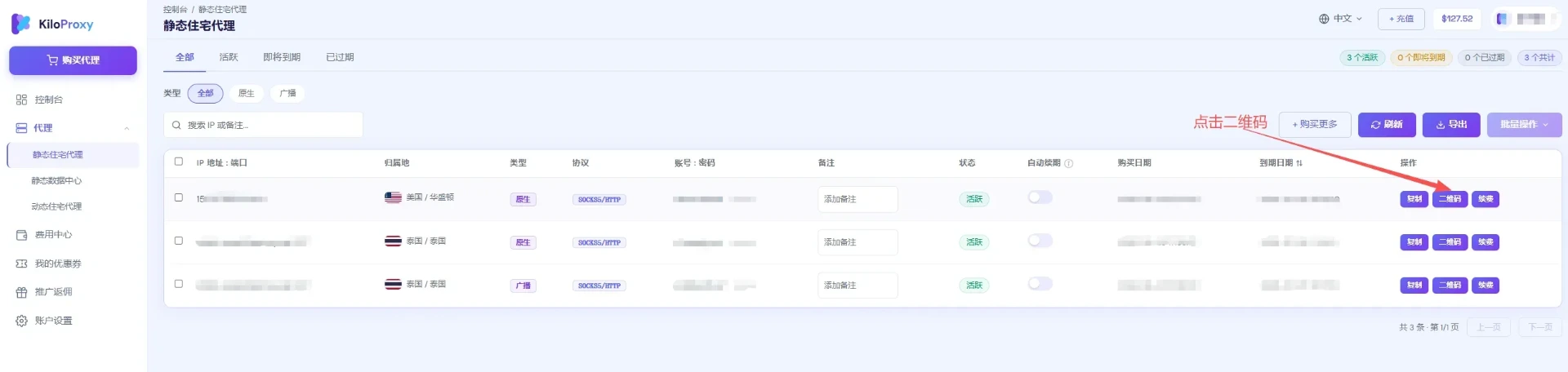
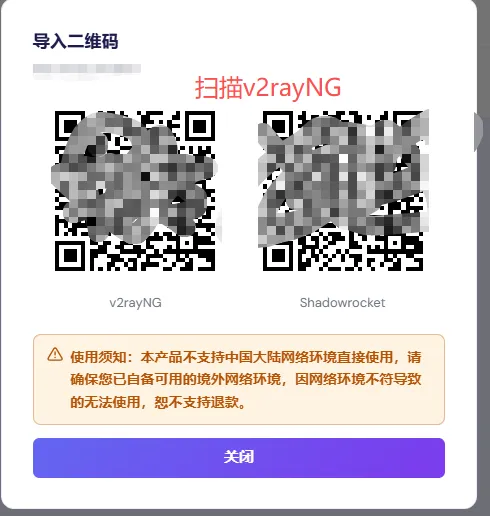
Step 3: Open the KiloProxy admin dashboard, find your proxy IP, and click [QR Code] to scan.
Step 4: Set the IP you want to configure as the [Landing IP].
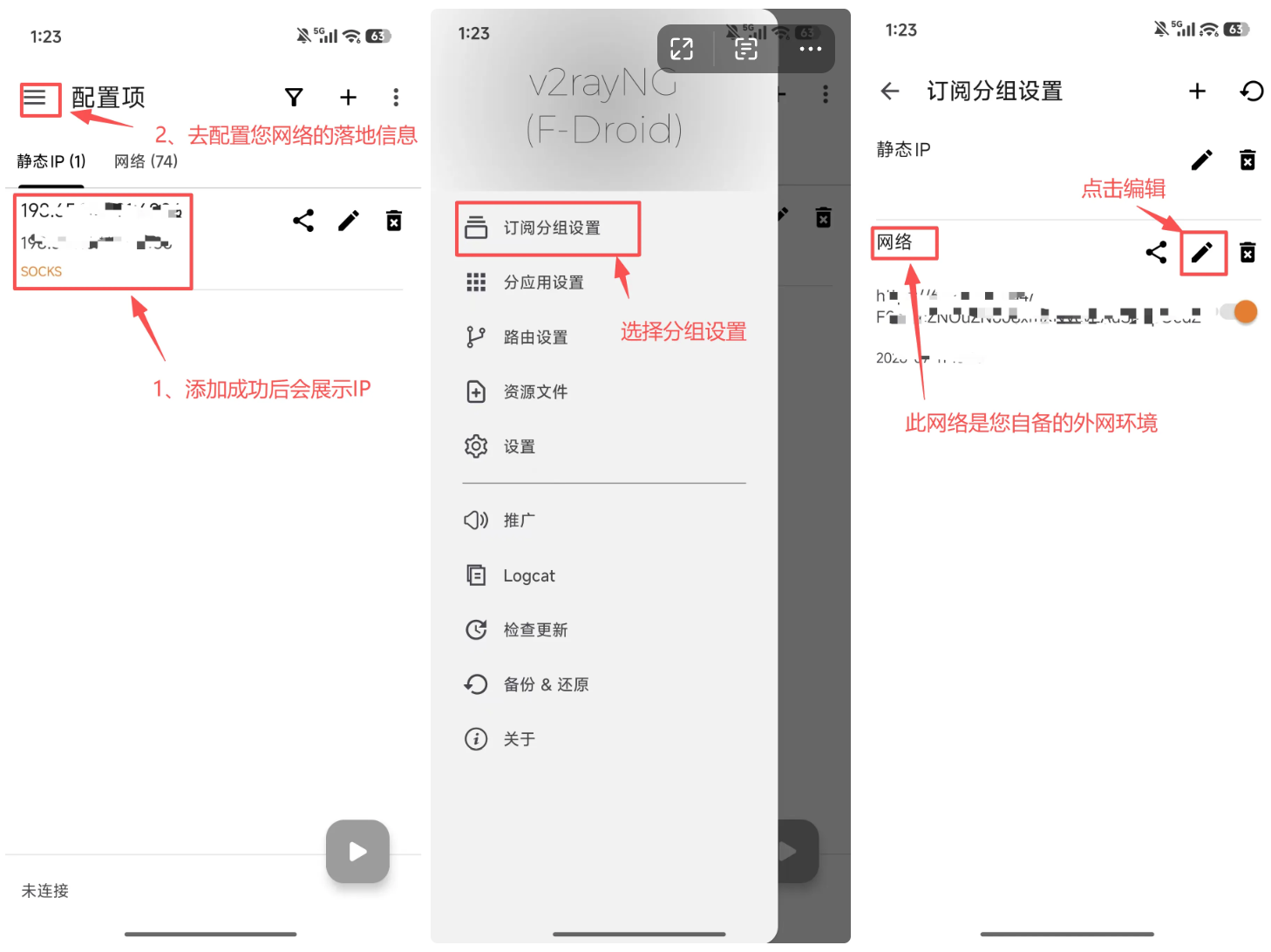
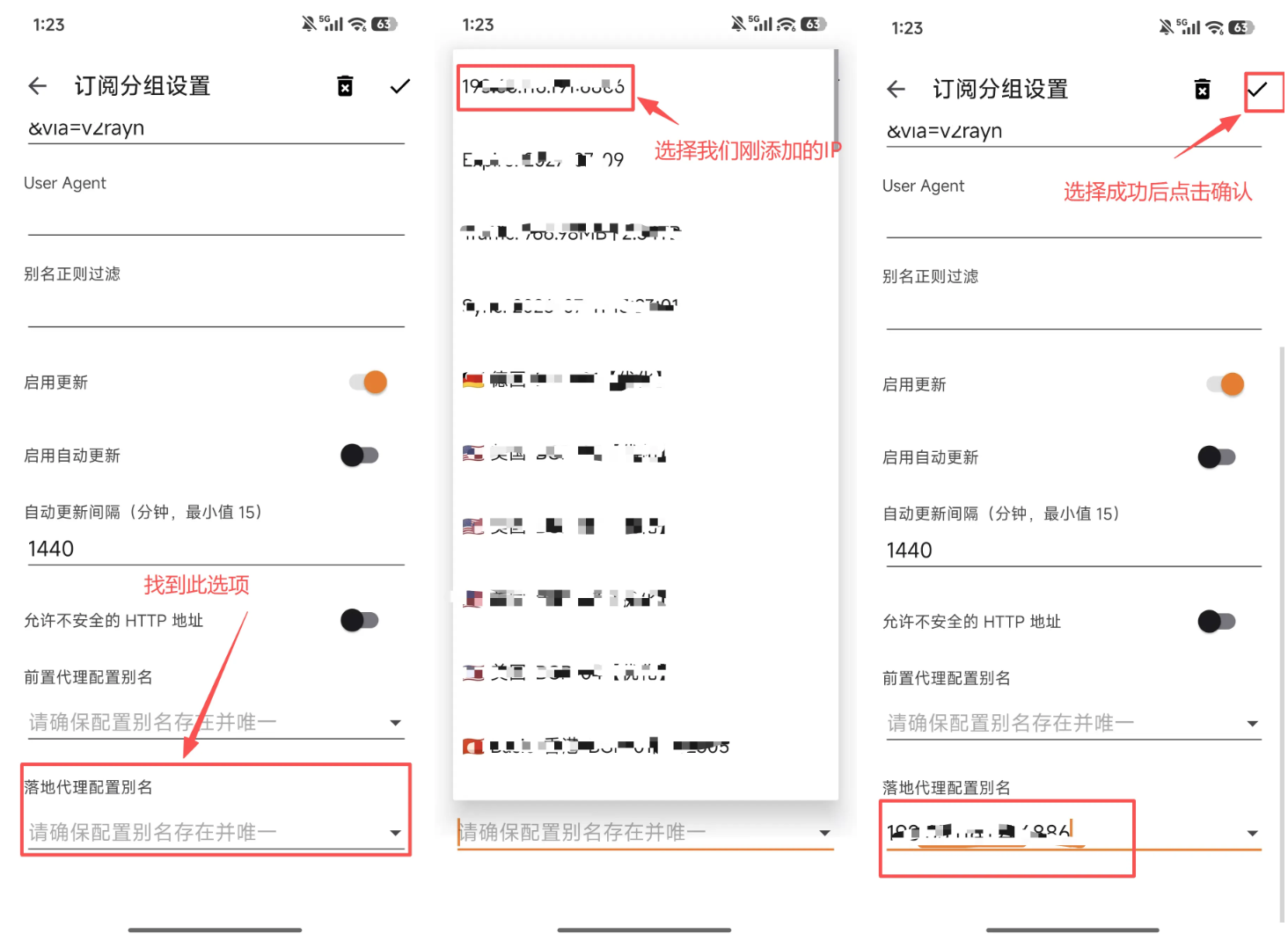
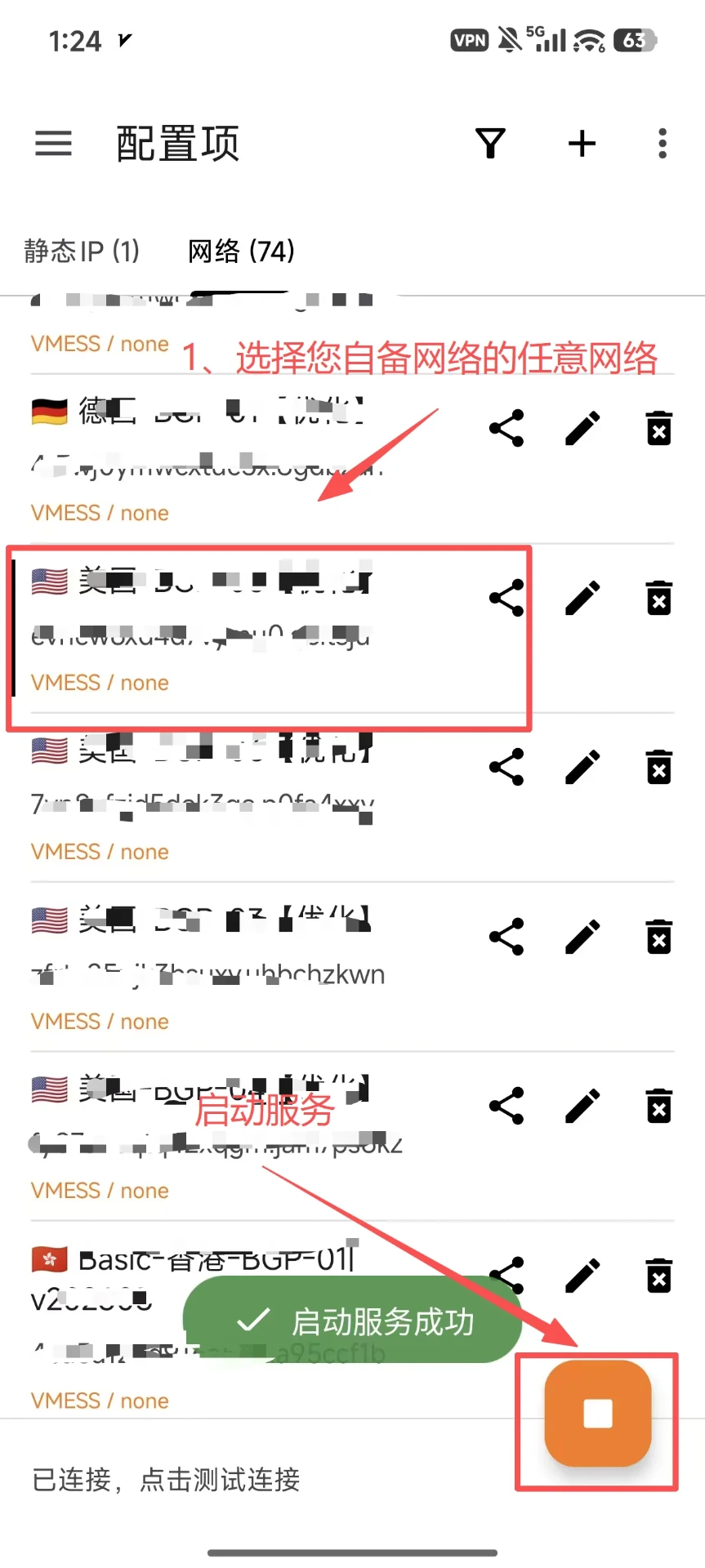
Step 5: Go back to [Config] and choose any network from your own airport (transit) network — prefer a nearby country or low latency. Click the small paper-plane icon below; when it shows a successful connection with a latency value, the configuration is successful.
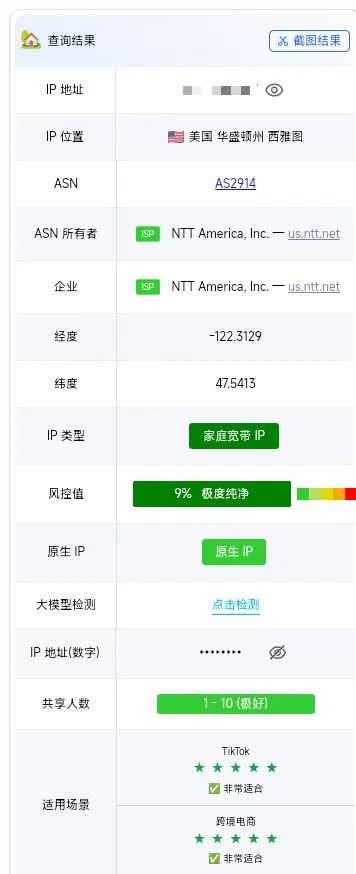
Finally, open the website ping0.cc to check whether the IP shown is the one you configured; you can also open Google to check whether you have internet access.
If you have any questions during use, please contact KiloProxy official support on WeChat 👇