Usage notice: This product does not support direct use within mainland China's network environment. Please make sure you have your own working overseas network environment. No refunds will be issued for failures caused by an incompatible network environment.
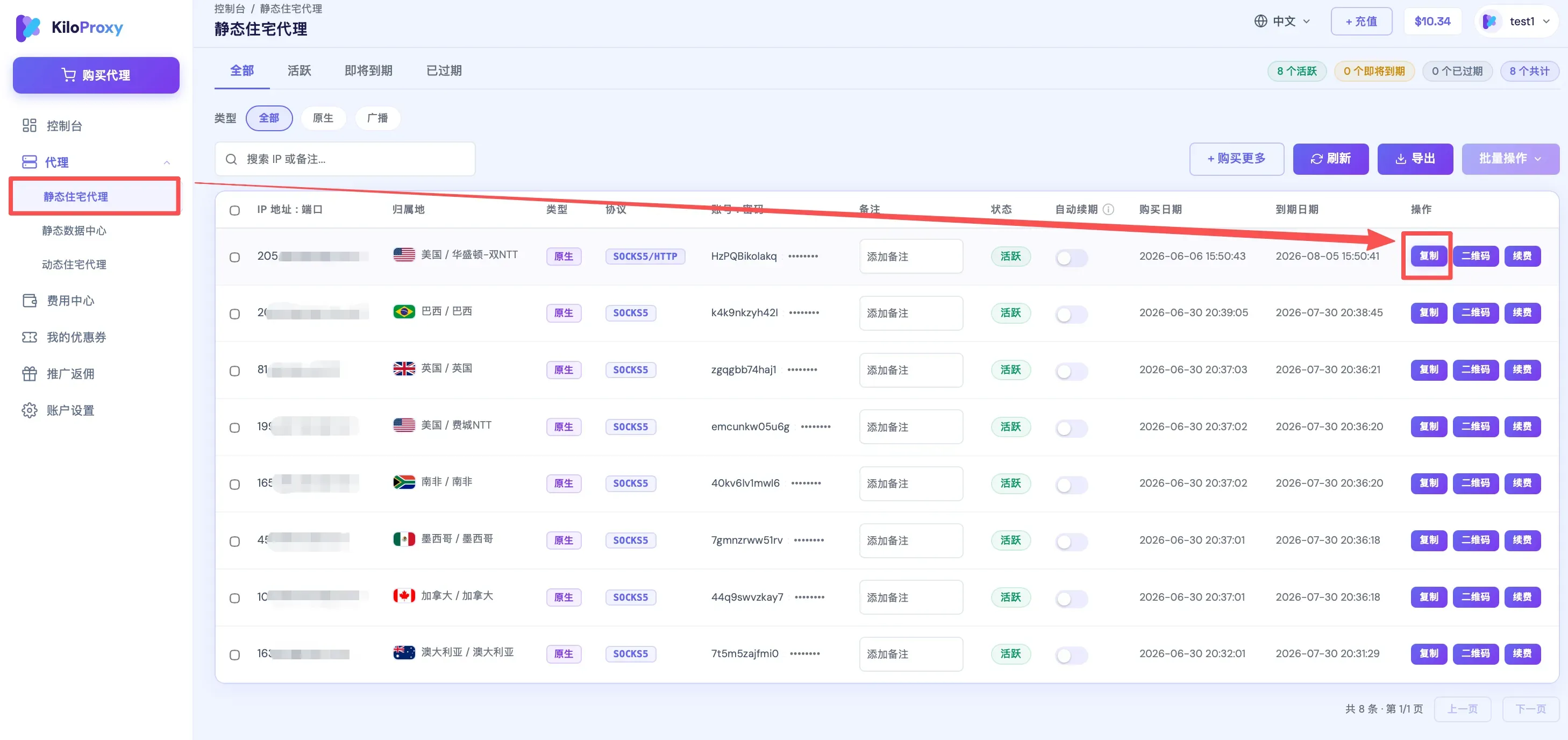
Step 1: Find the IP you want to configure in the proxy list, and click [Copy] to copy the IP information in one click.
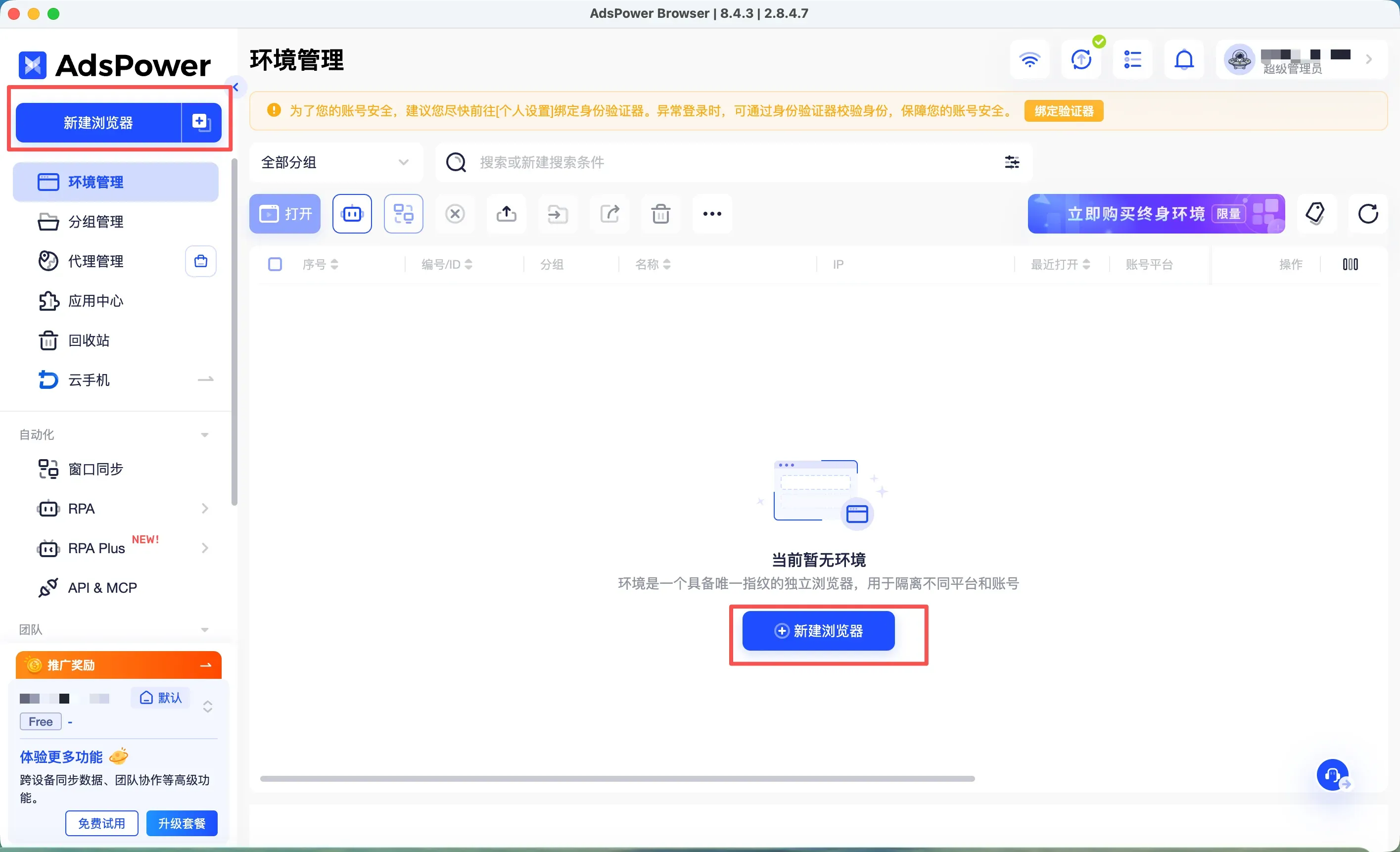
Step 2: Open the AdsPower browser and click [New Profile].
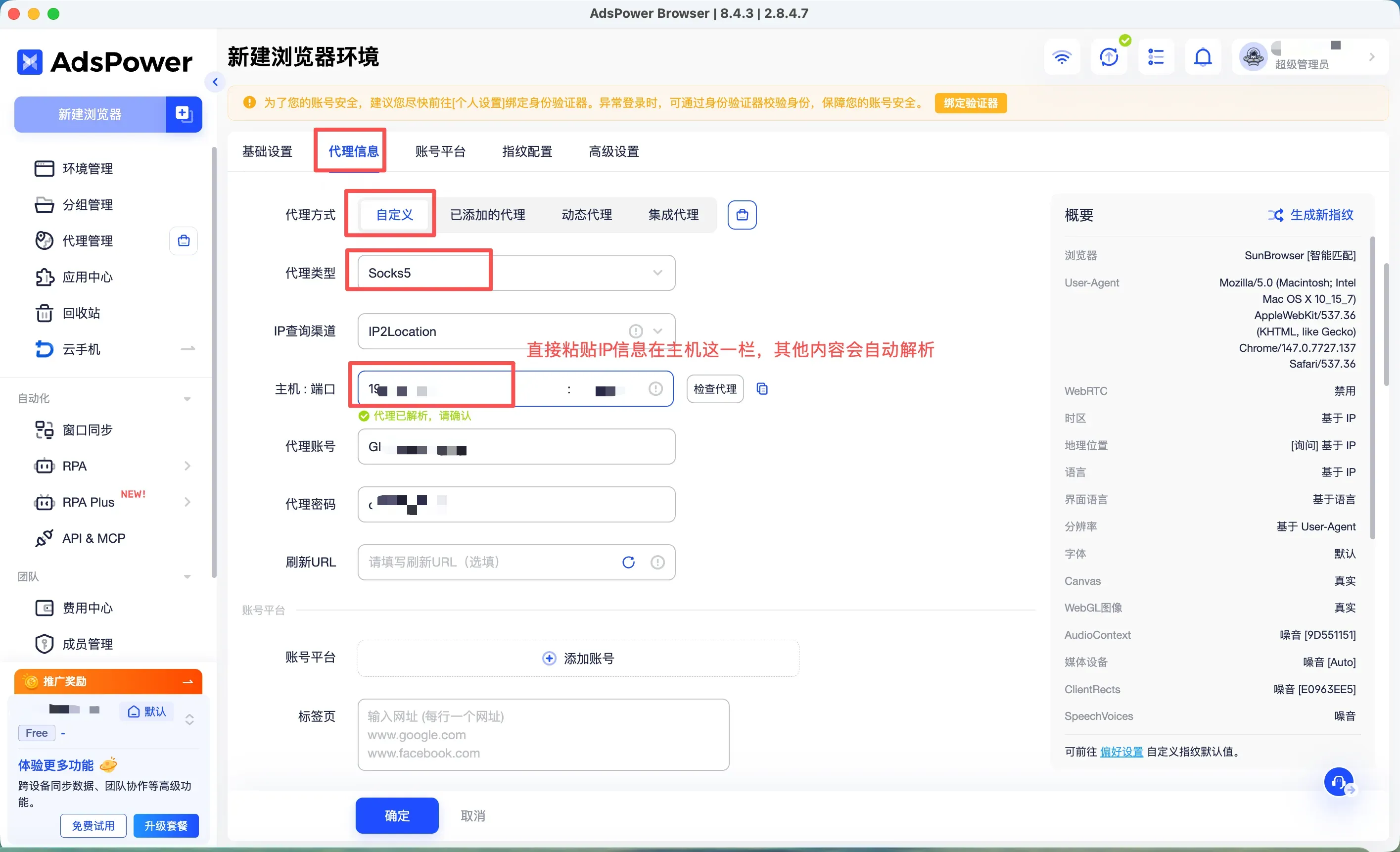
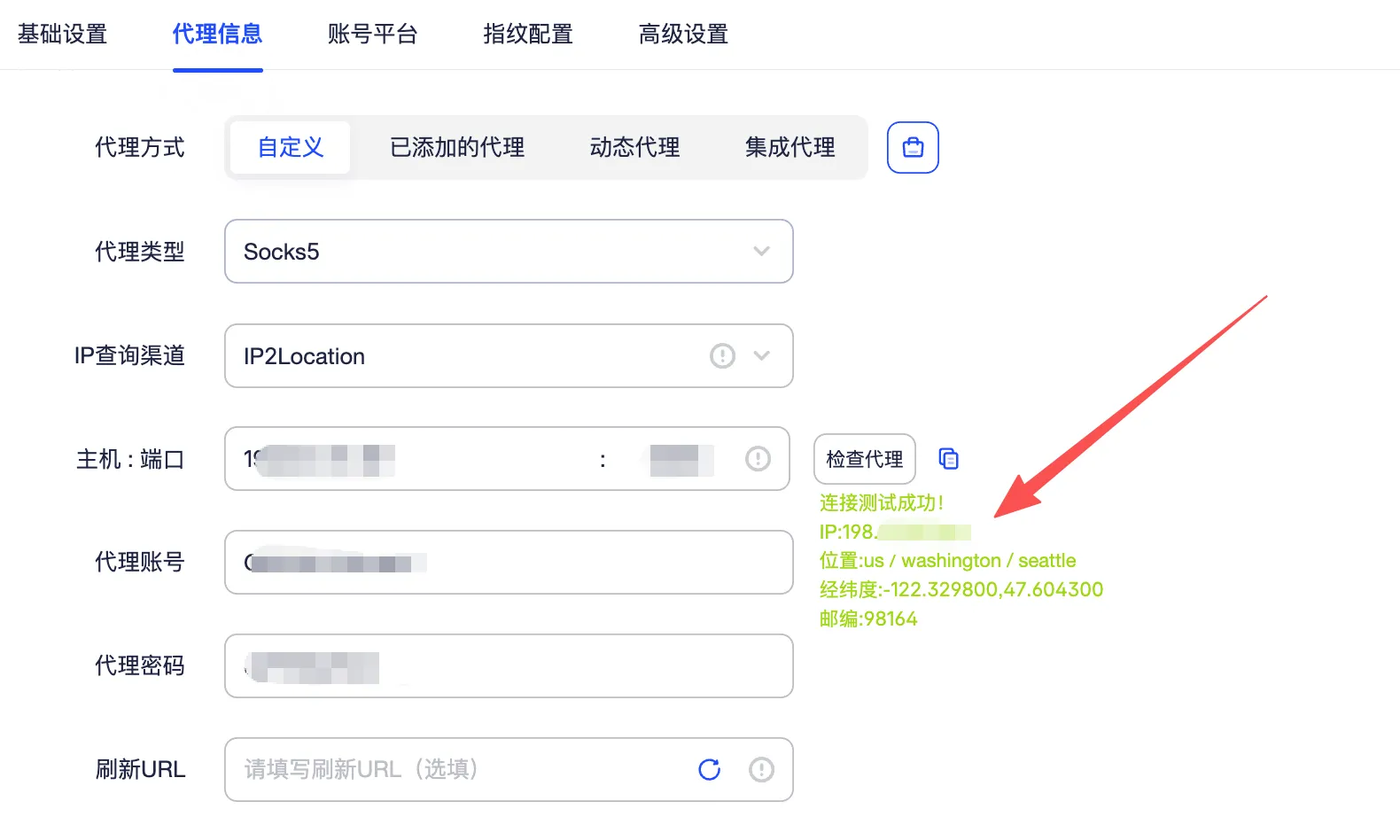
Step 3: Fill in [Basic Settings] and [Proxy Info]. For [Proxy Method] choose Custom, for [Proxy Type] choose Socks5, and paste the copied IP information directly into the Host field — the rest will be parsed automatically.
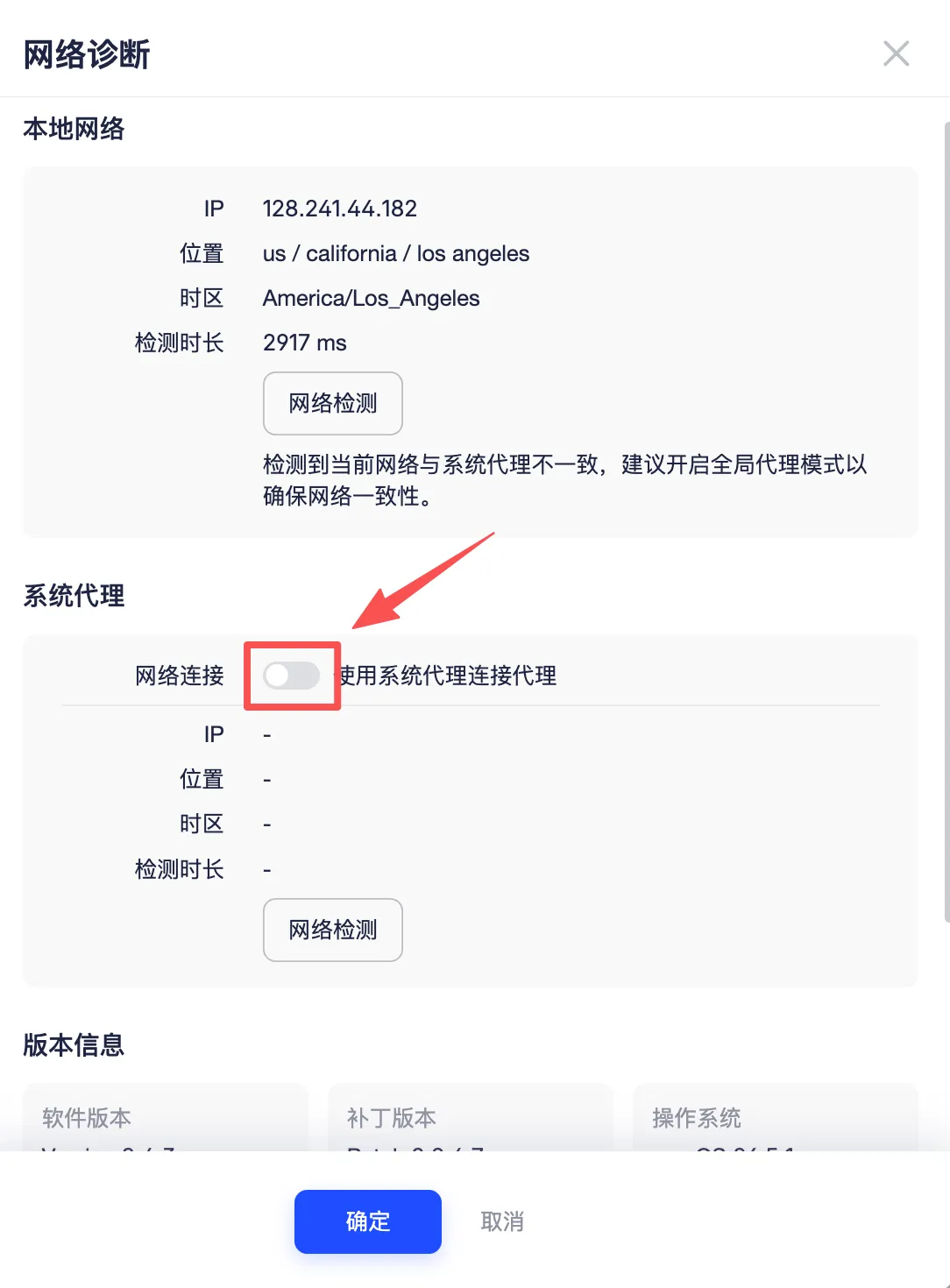
If the proxy check shows a connection failure, click the small icon on the right.
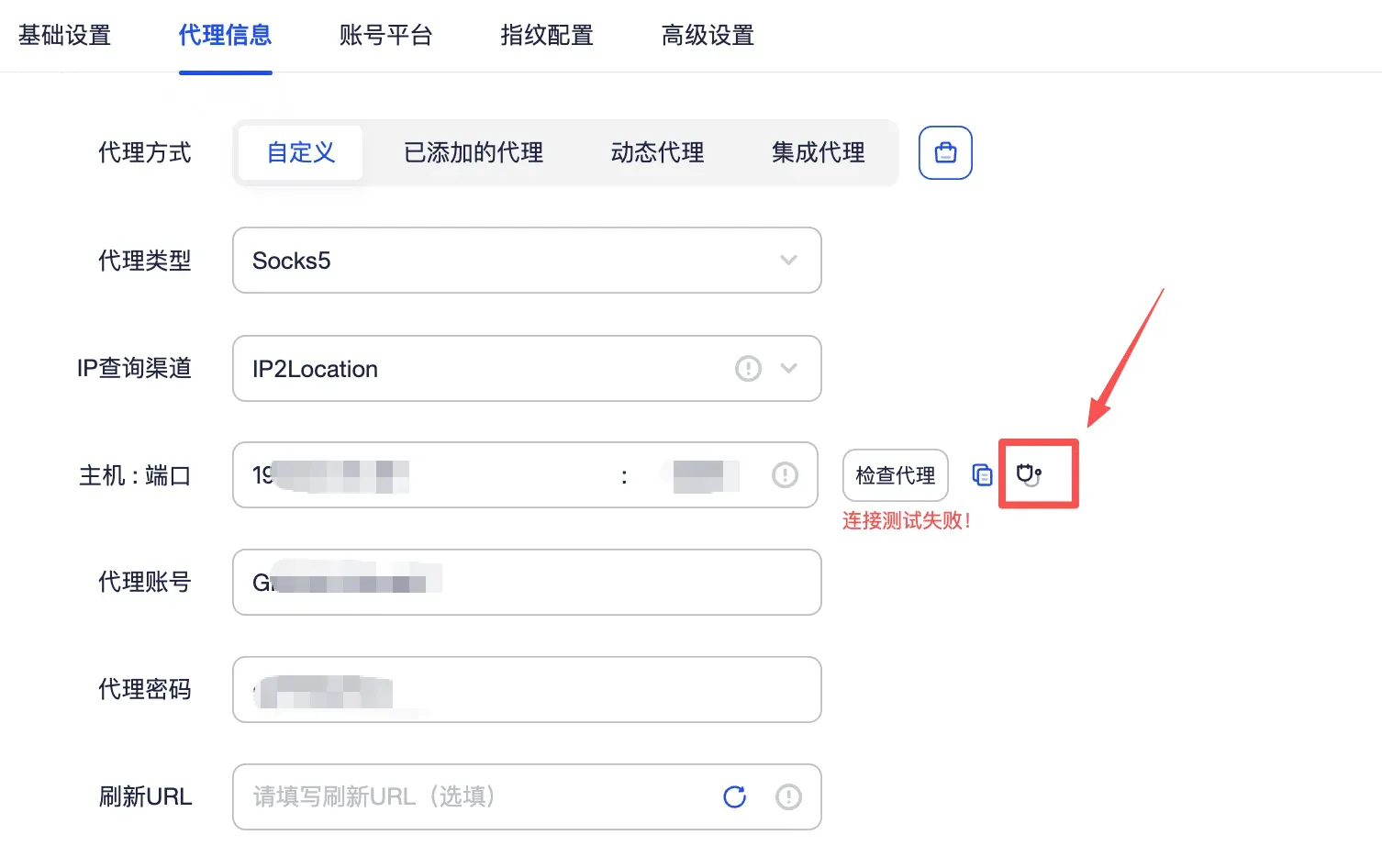
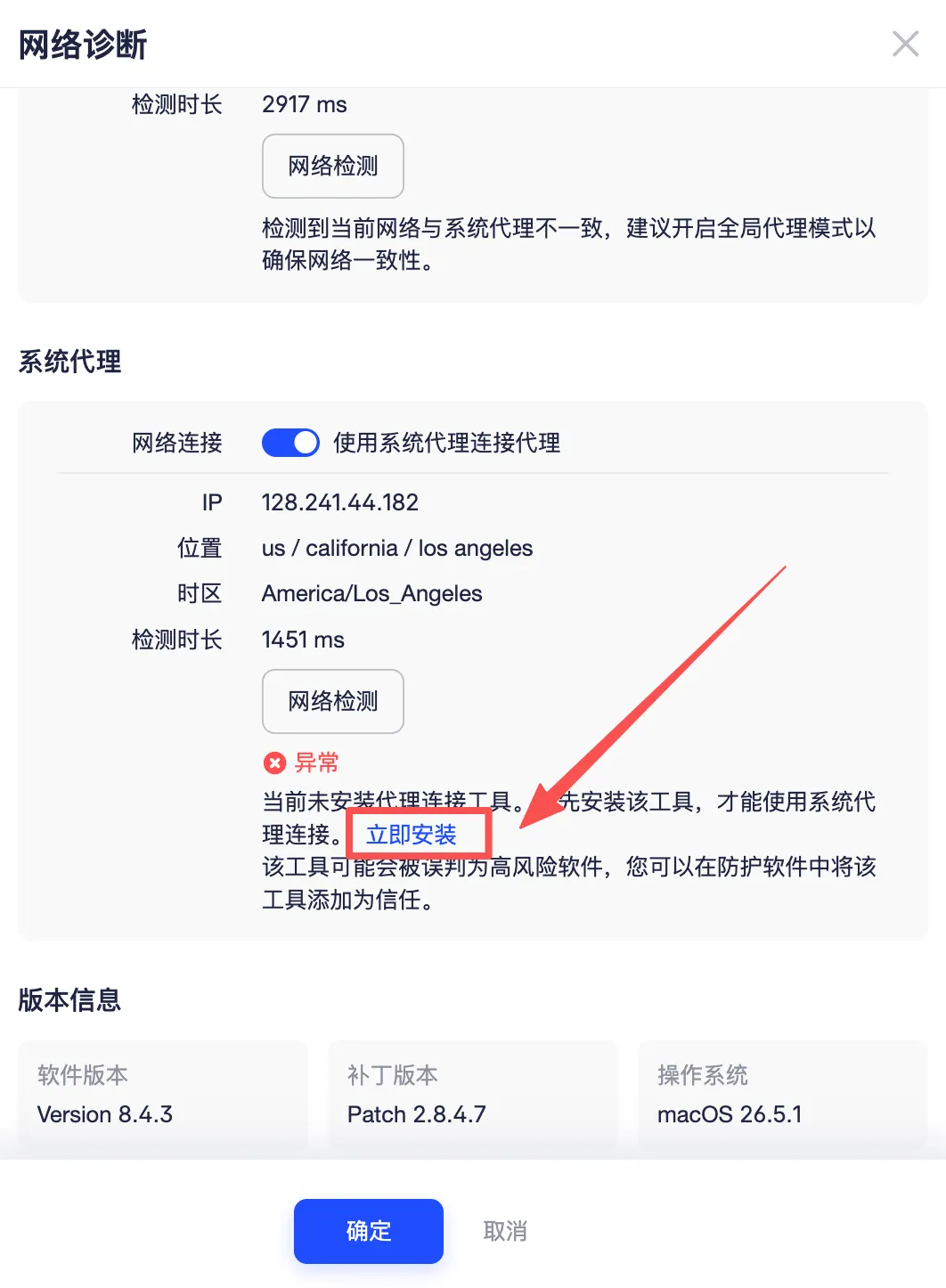
Click the [Network Connection] button; if it shows an error, click [Install Now]. After installation, click Confirm and check the proxy again. Once it shows a successful connection, the configuration is done — click Confirm to finish setting up the profile.
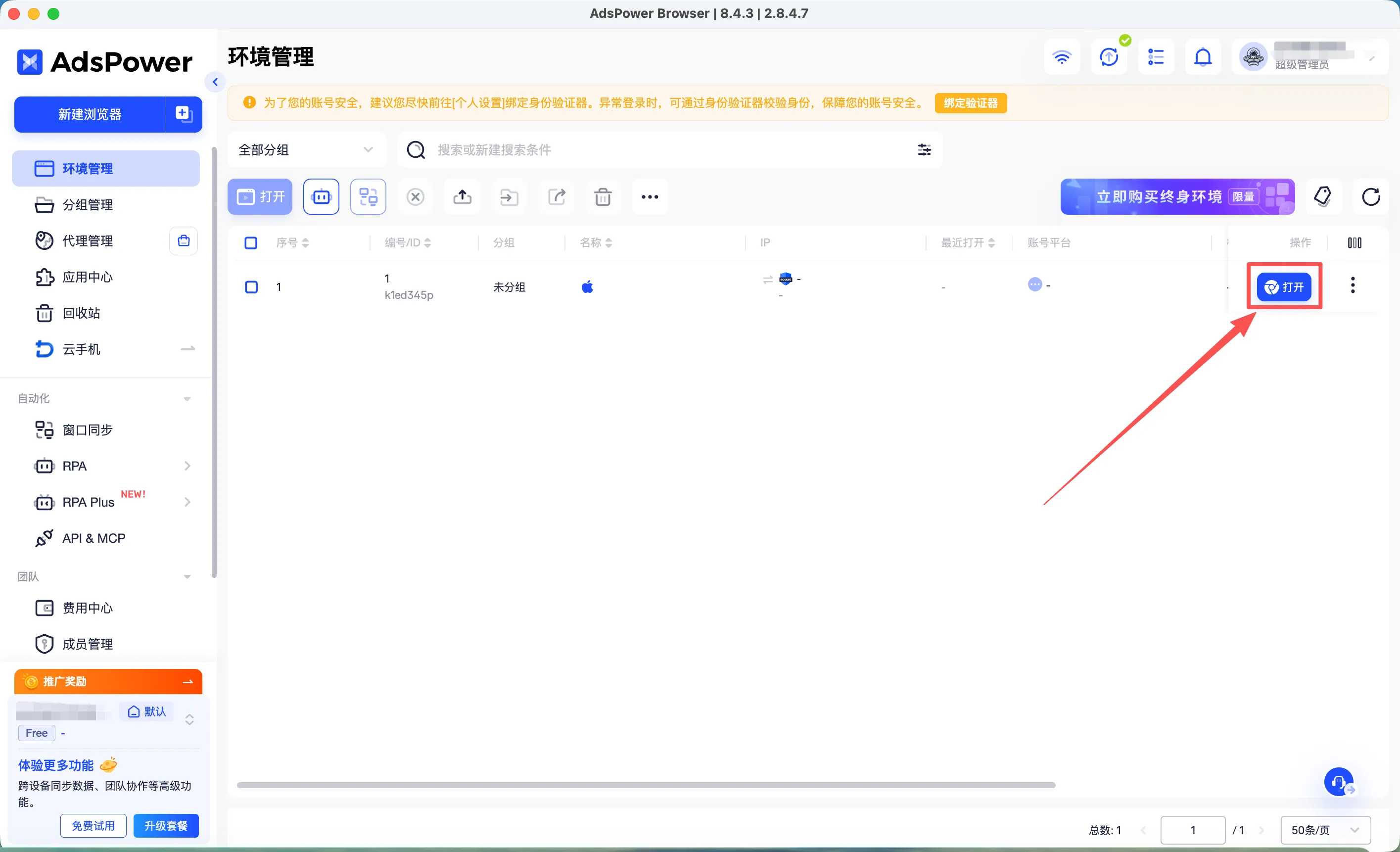
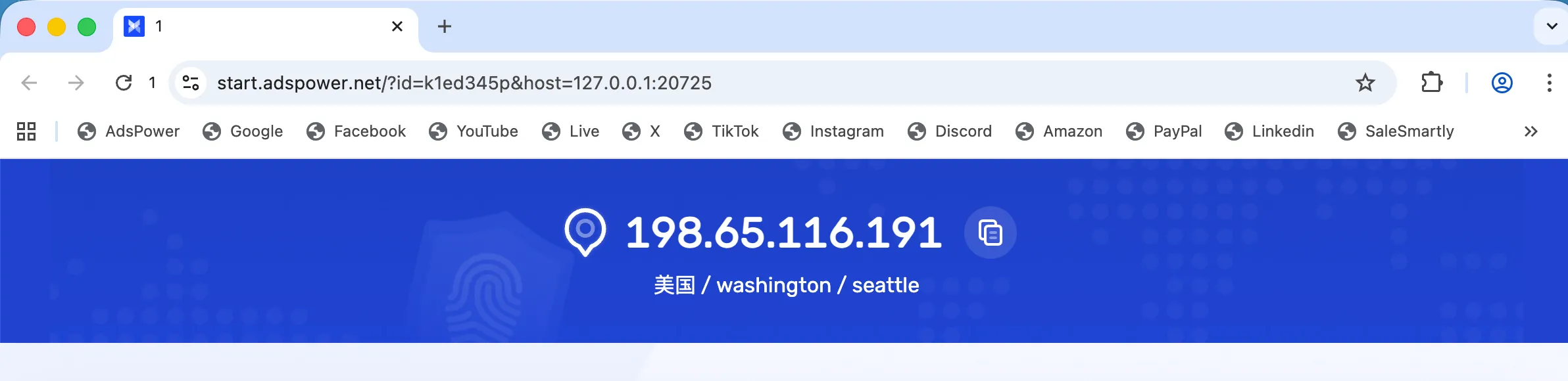
Step 4: Click [Open] to start using it normally.
If you have any questions during use, please contact KiloProxy official support on WeChat 👇